


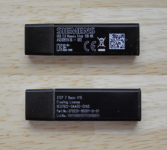
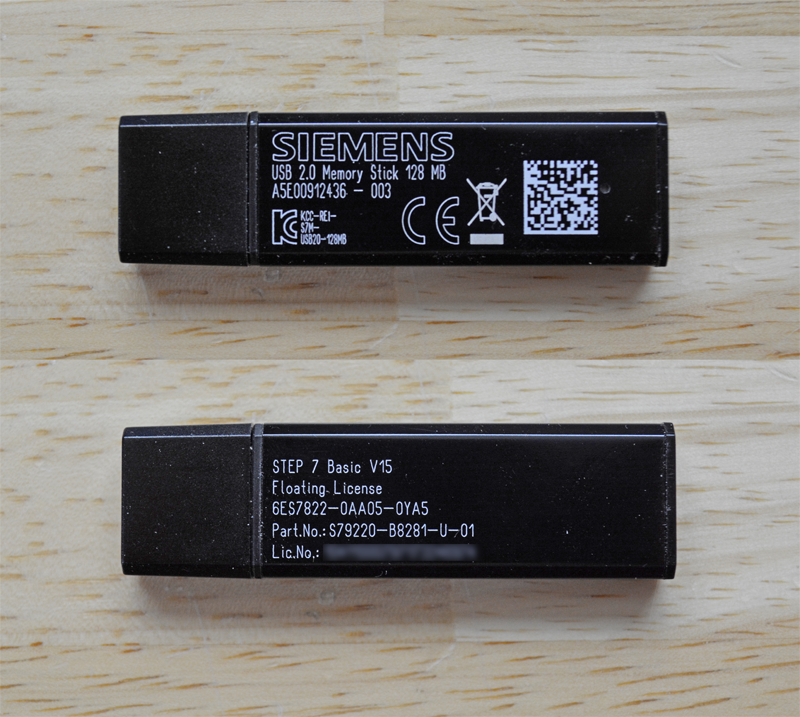
 If your copy of TIA Portal Step 7 came with USB Memory Stick Floating License, you’ll need to move that license to your hard drive before you’ll be able to use Step 7.
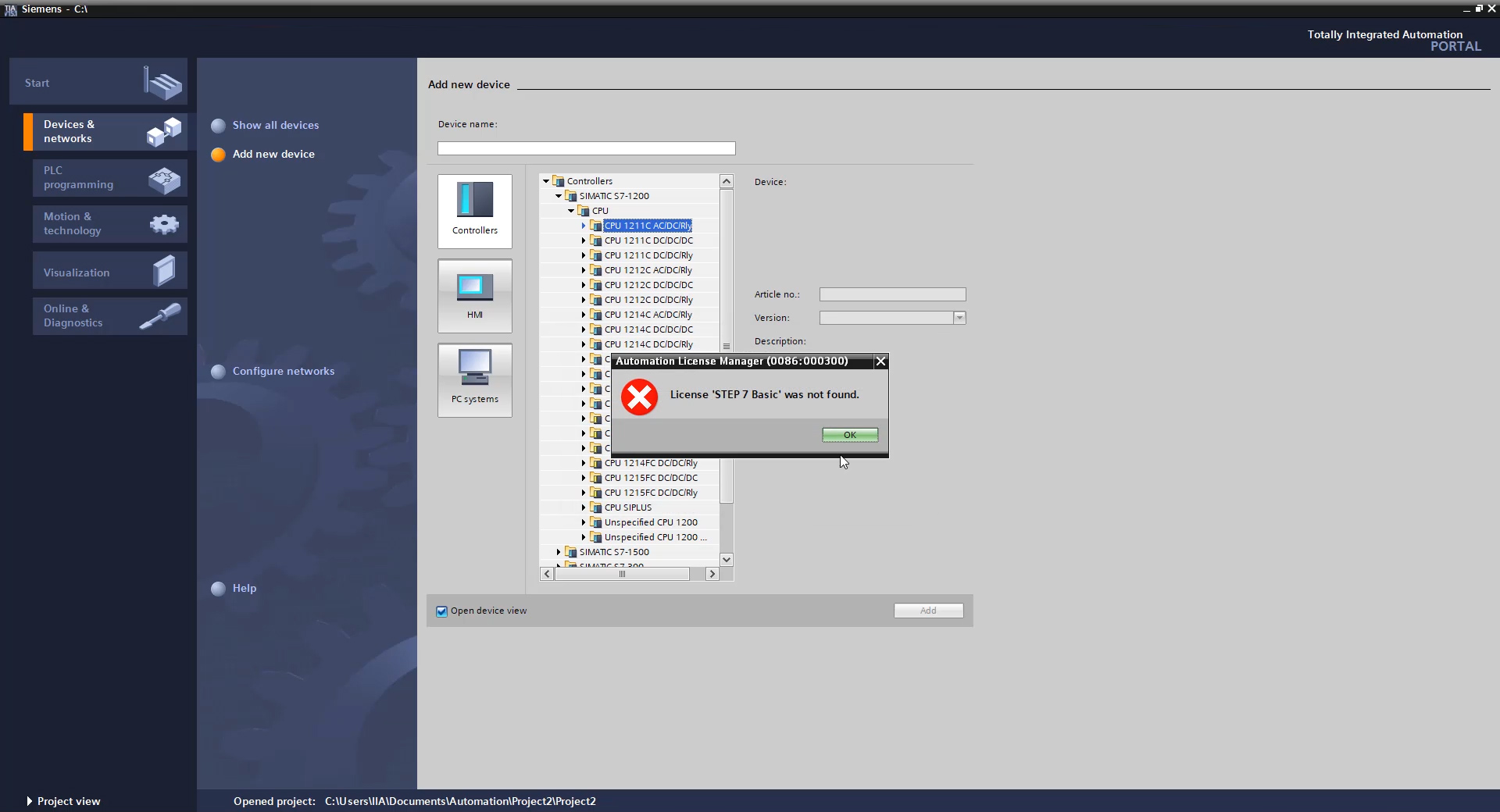
If you don’t, even with the USB stick installed you’ll get the following error when trying to open an existing project, or add a device to a new one:
To move your license from the USB memory stick to your hard drive, just follow these steps:
Step 01) Start by plugging your USB Memory Stick License into your computer. Then open the “Automation License Manager” application that is installed with TIA Portal:
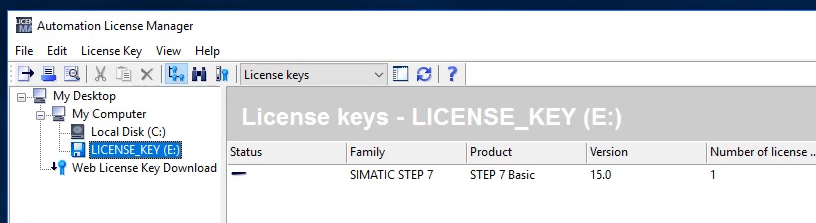
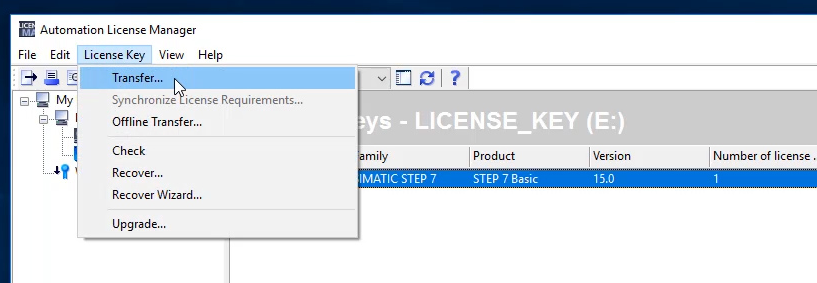
Step 02) Next, select the USB Memory Stick License drive from the list (in this case my USB License is drive “E”.) Next choose the license on the the right, and then choose “Transfer” under the “License Key” menu :
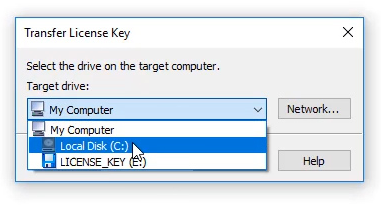
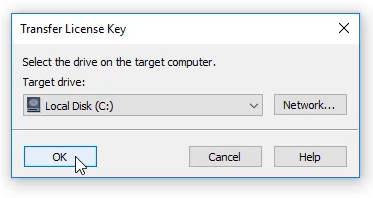
Step 03) In the pop-up hat appears, choose the hard drive you’d like to transfer the license to (in this example my hard drive is “C”.) Then click on OK:
Step 05) Now select the hard drive you just moved the license too, and you should find that your license now resides there:

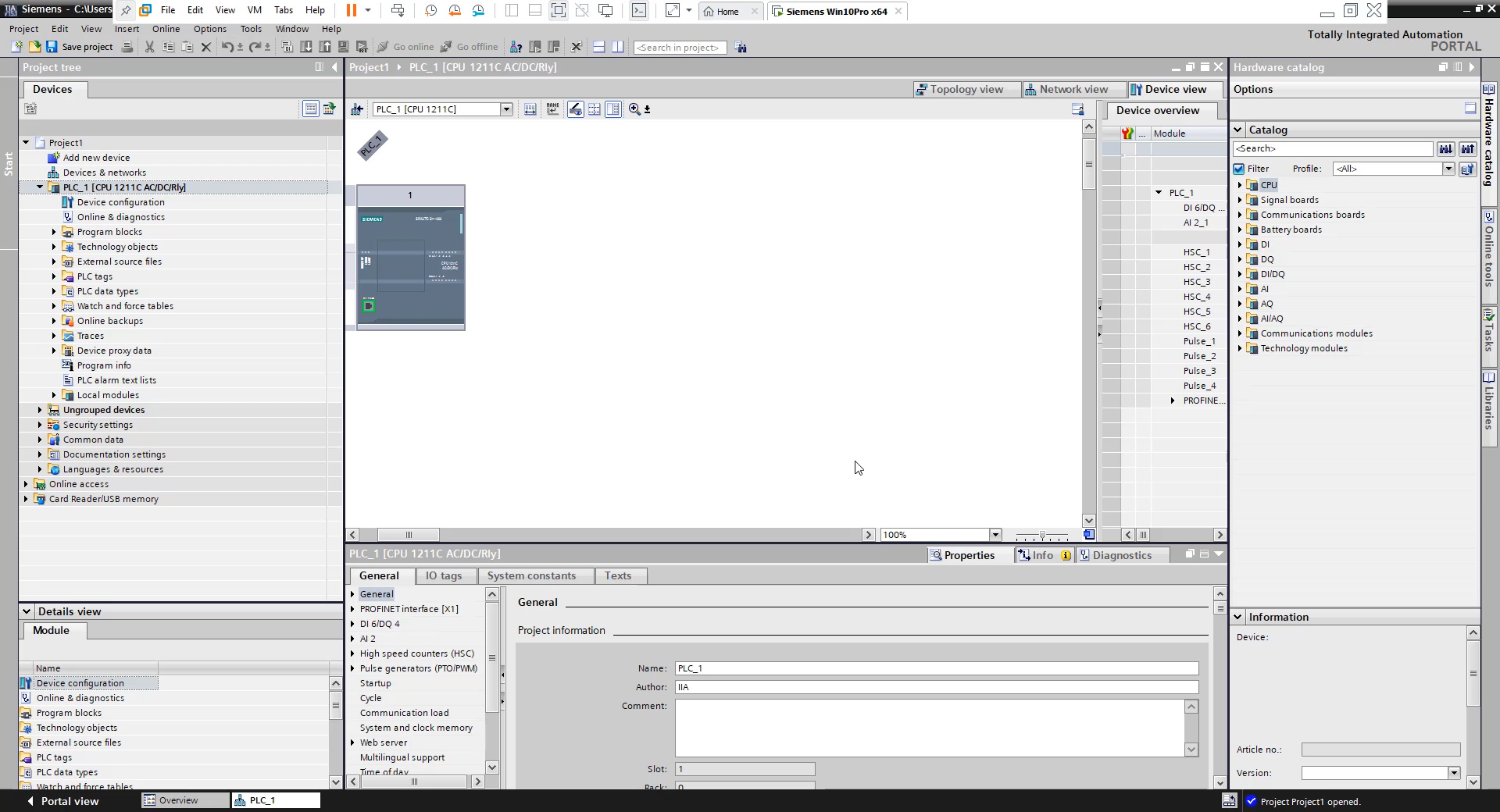
With the above steps done, you should be able to open or create a Step 7 project without getting a license error:
While the above procedure worked for me, I’m still new to Siemens. So if you have any insight or comments to share, I invite you to do so by clicking on the “post a comment” link below.
Until next time, Peace ✌️
If you enjoyed this content, please give it a Like, and consider Sharing a link to it as that is the best way for us to grow our audience, which in turn allows us to produce more content 🙂
Shawn M Tierney
Technology Enthusiast & Content Creator
Support our work and gain access to hundreds members only articles and videos by becoming a member at The Automation Blog or on YouTube. You’ll also find all of my affordable PLC, HMI, and SCADA courses at TheAutomationSchool.com.

- FactoryTalk Design Workbench First Look, CCW Comparison - December 19, 2025
- Drew Allen of Grace Technologies on Automation, Safety, and More (P256) - December 17, 2025
- Robotics in Warehouse Automation with Erik Nieves of Plus One Robotics (P255) - December 10, 2025
Discover more from The Automation Blog
Subscribe to get the latest posts sent to your email.



Saudações Engenheiro.
Estou com problema no tia portal, a primeira vez que instalei não ativei a licença. E após expirar já não consigo nem ativar. Por outra não tenho nenhuma licença, o tia portal baixei de forma grátis.
O que devia fazer para voltar ao normal?
?
Finalmente sono riuscito ad attivare la licenza del software TIA Portal, seguendo esattamente il vostro esempio. Quando ho creato il nuovo progetto, non ho utilizzato la directory di default, che, nel mio caso, comprendeva OneDrive. Ho creato, invece, il nuovo progetto in “C:\mioplc”, dopo aver creato la cartella “mioplc”. Tutto ha funzionato benissimo. Grazie Mille.
In precedenza avevo avuto il problema che citate nell’articolo; probabilmente era dovuto al fatto che creavo il progetto in una sottocartella di OneDrive e avevo installato la chiave di licenza in C:
Andrea Paolini
It’s interesting that the Automation License Manager help files state that you can store the license on USB, but does not seem to make explicit that you cannot use (i.e. authenticate and run the software with) the license on USB.
Yeah, that is definitely different than Rockwell’s implementation, but still it works well 😉
Shawn Tierney,
Instructor at The Automation School
[sc name="stsigcom"]
very nice location
Thanks! Hey, would you be interested in freelance writing for us?
[…] How To Activate TIA Portal Step 7 Using A USB License […]