

Update: Check out the newest article on this topic HERE.
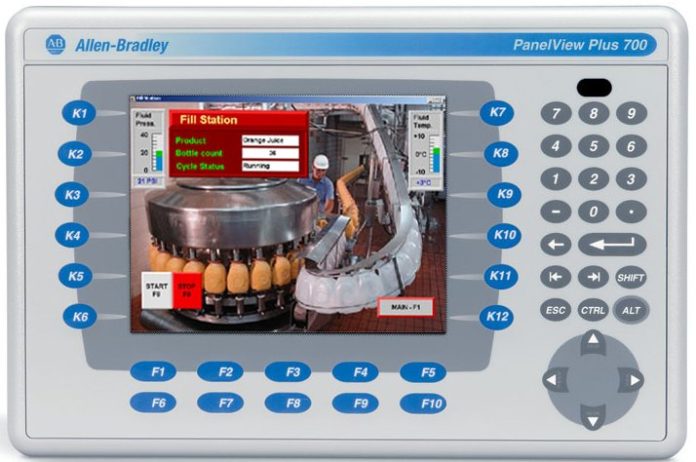
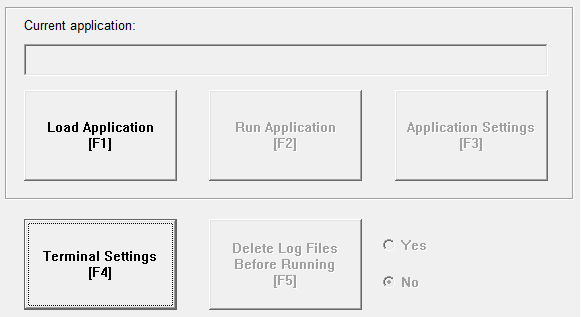
When powering on a PanelView Plus for the first time, it will boot up to the main “Configuration Mode” menu screen.
From there, the user has several options:
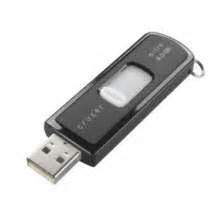
 Load an application from internal memory, memory card, or from most USB Flash Drives.
- Run the loaded application
- Edit the loaded application’s settings
- Edit the Terminal Settings
- Change the setting for “Delete Log Files Before Running”

In many cases the programmer with change the terminal settings to match the system requirements, which almost always includes entering new network settings.
However, after initial start these settings will often need to be modified, so gaining access to this menu in the future is very important.
 Now once a FactoryTalk View Machine Edition runtime is loaded and running, the easiest and most convenient way to return to the “Configuration Mode” menu is to place a “Goto Config” button on one of the project’s graphic display screens.
In many cases, the programmer will chose to put this button on a secured screen so operators don’t accidentally press it and exit the application.
But occasionally a programmer will forget to put a “Goto Config” button on any screen, or will hide it so well that no one else can find it.
The easy and obvious fix for this is to download an updated project which does have a “Goto Config” button.
However, if some time has passed since the unit was programmed, or if a different programmer is now working on the terminal, the existing network settings may not be known.
If that’s the case, there’s just no way to download to the terminal over the network.
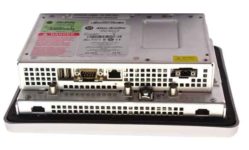 When this happens, and the programmer finds himself locked out of the PVPlus configuration menu, he won’t be able to (1) change which project is running, (2) communicate with the terminal, and (3) won’t be able to change any of the terminal settings.
And with a single PanelView Plus terminal costing thousands of dollars, this isn’t a viable position to be in.
In the early days of the product if I found myself in this situation I would resort to disassembling the terminal.
First I would remove power, and then I would remove the “Logic Board” from the “Display Module.”
N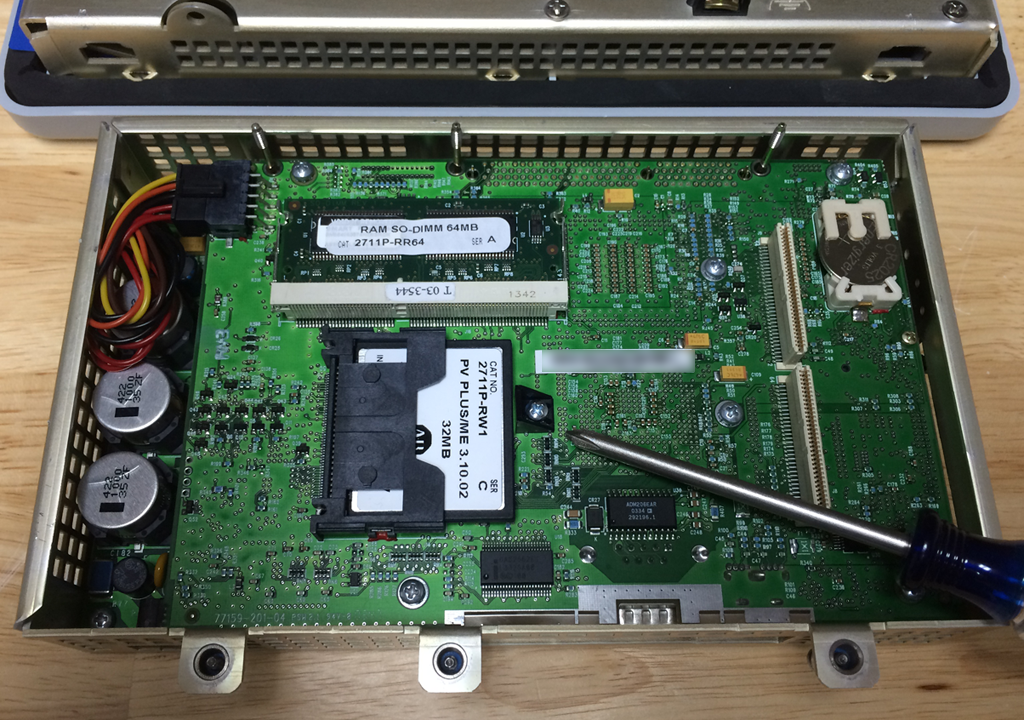 ext I would remove the retaining screw holding the internal Compact Flash card in, the I would remove the Compact Flash card itself.
I would then put the card into a PC with a Compact Flash card reader, and search it for .MER files which I would MOVE off the card and onto my PC.
When I reassembled the PVPlus and powered it back on, since it didn’t find the startup file it was programmed to run it would simply display an error message and then return the user to the “Configuration Mode.”
 Fortunately, in version 3.20.09 Rockwell added a “boot up sequence” interrupt that allows users to bypass the launching of the default project.
When units with the newer firmware are turned on, the user can either press a small “White Box” on the bottom left of a touch screen terminal, or presses the “F1 Key” on a keypad terminal, to force the PVPlus to boot to the “Configuration Mode.”
With how to access the “Configuration Mode” explained above, tomorrow we’ll talk about what to do if the “White Box” doesn’t show up on boot, or if the “F1 Key” on a keypad unit doesn’t launch the “Configuration Mode.”
Until then, if you’ve ever been locked out of your PanelView Plus, or had to use one of the above strategies to get back into the “Configuration Mode,” we’d love to hear from you.
Just click on the “post a comment or question” link below to let us know your thoughts on this subject.
Until next time, Peace ✌️
If you enjoyed this content, please give it a Like, and consider Sharing a link to it as that is the best way for us to grow our audience, which in turn allows us to produce more content 🙂
Shawn M Tierney
Technology Enthusiast & Content Creator
Support our work and gain access to hundreds members only articles and videos by becoming a member at The Automation Blog or on YouTube. You’ll also find all of my affordable PLC, HMI, and SCADA courses at TheAutomationSchool.com.

- A.I. Tech Talk with Emil Soerensen of Kapa.ai (12/04/25) - December 4, 2025
- Innovation Summit Las Vegas 2025 Recap (P254) - December 3, 2025
- New Features of Ignition 8.3 with Travis Cox (S2E37) - December 2, 2025