Home Blog Page 111

ControlLogix, CompactLogix – Data Logging Options

Data Logging Featured Image

Clients often ask me about available data logging options for the CompactLogix and ControlLogix. And as of version 21, the controller itself still has no native data logging feature (maybe in v22 v30?)

While you can create trends in RSLogix5000 which you can later export to CSV file, this solution isn’t automated and not very fool proof. So what can you do? Below are some popular ways to automate data logging with your CompactLogix and ControlLogix:


RSLogix5000 CF Read WriteOption 1: Log to CompactFlash or SD Memory

In version 16 of RSLogix 5000 Rockwell added sample code demonstrating the ability to programmatically create a text file on the removable CompactFlash or SD card which many newer models support. To do this simply review the include sample code, “CF_Read_Write_Example” which can be found in your “RSLogix5000ProjectsSamplesENURockwell Automationv16” directory, or the manual here.

UPDATE: There is a separate sample code download which does log to CSV file – for more information see this Blog Post HERE.

Pros:

  • Free
  • Log in text file
  • Can format as CSV
  • Plenty of space for large logs

Cons:

  • Text file saved in a binary format
  • Manual retrieval
  • Not a database solution
  • Possible noise issues with older CompactLogix processors (more info here)

Note: Versions of the above mentioned code prior to version 16 didn’t contain error checking code and are therefore not recommended.

RSLinx SplashOption 2: Log internally to array, retrieve with MS Excel and RSLinx Classic

It’s a fairly easy task to write a routine to log data to an internal array. And it’s also quite easy to setup MS Excel and RSLinx Classic (Single Node for 1 PLC, OEM for many) to read that array (search RSLinx Classic help on EXCEL to find VBA sample code.)

However, trying to automate this process with VBA in MS Excel could be more work and effort than it’s worth.

Pros:

  • Fairly simple coding in PLC
  • Extracting data to Excel via RSLinx Classic is fairly easy using sample code in RSLinx Classic help files.

Cons:

  • Writing and testing code to automate could be time consuming
  • Reliability issues
  • Data not in a database.

FTViewME DataStoreOption 3: PanelView Plus CE or 6 (or ViewME Station) DataStore ActiveX

The PanelView Plus CE, PanelView Plus 6, and ViewME Station all have the ability to use a free Rockwell ActiveX called “DataStore.” What this object does is simply log tags you choose to a CSV file which you can later copy to your PC and open in MS Excel.

Pros:

  • Automated data collection using your PVPlus 6 or CE at no extra charge

Cons:

  • Manual retrieval
  • Not in a database

XLReporterOption 4: XLReporter from SyTech  

For over a decade I’ve been a fan of this simple yet elegant package which is basically a report generating add-on for MS Excel.

Before using this package, my automated RSView32 datalog reports were VBA queries of my RSView32 collected datalogs which I stored in MS Access. while this old method worked great, it was technically far beyond what most clients wanted to do to generate reports.

But with XLReporter, Ms Excel, and RSLinx Classic you can not only setup data collection into spreadsheets directly, but you also can generate some good looking reports automatically. For more information on XLReporter, check out their website at http://www.TheReportCompany.com.

Pros:

  • No code to write
  • Easy to use
  • Great tech support

Cons:

  • Price starts around $1000 (without RSLinx or MS Excel)
  • Not a database (options to read databases can be purchased)

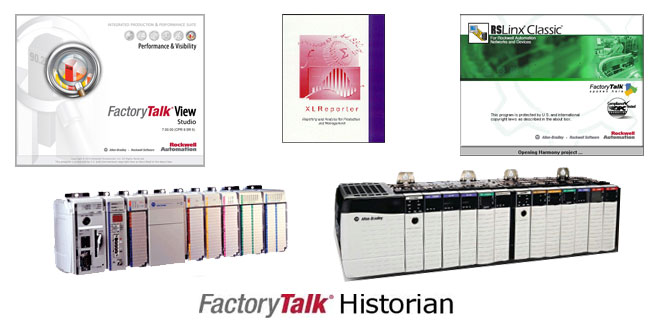
ViewStudio SplashOption 5: FactoryTalk View Site Edition  

ViewSE’s data logging features are fairly extensive. You can configure unlimited number of datalogs, and run up to 20 simultaneously. Each datalog can have up to 10,000 tags in it (ViewSE has no tag limit,) and they can be logged to either a compressed format (extractable with a free utility,) or better yet to any database which supports ODBC (MS SQL Server Express is included.)

Pros:

  • Supports 20 datalogs simultaneously logging 10,000 tags each
  • Supports most databases via ODBC
  • Comes with RSLinx Classic and Enterprise (ViewSE versions)

Cons:

  • Can’t easily view data directly in MS Excel
  • Cost of ViewStudio Development and ViewSE runtime (if not already owned)

FT Historian SE SlideOption 6: FactoryTalk Historian SE

For the most robust data collection I recommend FT Historian SE. This package is built to do one thing well – large volume time series data collection. Based on the world’s largest installed base of data collection software (OSI PI,) Rockwell has included easy to use hooks to setup logging of data from it’s PLC’s, and has also included it’s popular web based trending and reporting package, VantagePoint.

Pros:

  • World class solution based on OSI PI with space saving data compression
  • Easy connectivity to PLC’s, especially using RSLinx Enterprise or OPC.
  • Excel plugin for easy viewing of collected data
  • Comes with full web based trending and reporting package (VantagePoint)

Cons:

  • Requires Microsoft Server 2008 R2
  • Cost of lowest tag count roughly $4500

I hope you’ve found this article about my thoughts on how to datalog data from the ControlLogix and CompactLogix helpful. If you have a question or would like to offer your own data logging option please click on the “post a comment or question” link below to comment on this article.

Until next time, Peace ✌️ 

If you enjoyed this content, please give it a Like, and consider Sharing a link to it as that is the best way for us to grow our audience, which in turn allows us to produce more content 🙂

Shawn M Tierney
Technology Enthusiast & Content Creator

Support our work and gain access to hundreds members only articles and videos by becoming a member at The Automation Blog or on YouTube. You’ll also find all of my affordable PLC, HMI, and SCADA courses at TheAutomationSchool.com.

Shawn Tierney

(no views)

Beginner’s PLC

Micro 810 and MicroLogix 1000

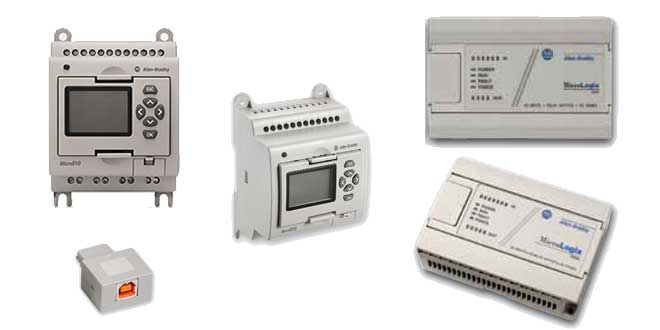
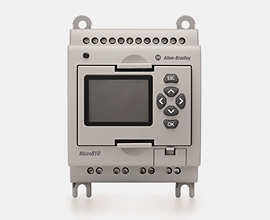
Micro 810 and MicroLogix 1000So you’re new to the world of PLC’s (Programmable Logic Controllers) and are looking to buy a beginner’s PLC to work with at home.

I’m going to assume you’re on a budget, so getting the most “bang for your buck” will be important. You also may not own a 24vdc power supply, so it’s probably going to be convenient if you can purchase a model that plugs directly into a home outlet.

With the above limitations in mind, lets take a look as what I would recommend as a beginner’s PLC:

NOTE: Can’t decide between learning PLCs or PACs? Check out our companion article HERE.

NOTE: Links to parts and pieces helpful when testing a PLC at home:

Micro800 Family of PLC’s from Allen-Bradley.

Micro 810In my opinion, the Micro800 family of Micro PLC’s will give you the most value for your money.

It’s a new, modern product that’s focused on low cost, easy of use, and no prior knowledge of Allen-Bradley PLC’s.

However, if you work in an facility with PLC-5 and SLC-500 processors and your goal is to learn how to program those, the Micro800 family may not be for you. Its much less like the PLC-5 and SLC-500 than is the second option I’ll list below, the MicroLogix.

But if the newest, most powerful and lowest cost option is what you’re looking for, then I believe the Micro810 is the right choice for the following reasons:

  • The Micro810 starts at $115 (PLC PN# 2080-LC10-12xxx and 2080-USBADAPTER.)
  • Programs with the FREE CCW programming software (Connected Components Workbench.)
  • Programs in Ladder, Function Block, and Structure Text languages.
  • Programs using standard over the counter USB cable.
  • There are dozens of free “how to program” videos posted by A-B on YouTube, as well as my affordable Micro800 course, Nano Basics.

Micro 830Of all the Micro810 models available, if you don’t have a 24vdc power supply you may wish to chose the 2080-LC10-12AWA as it’s powered by 120vac, which means you can power it directly from a residential outlet (power cord not included.) It also has 120vac inputs, and four isolated relay outputs which can be used for AC or DC applications.

If you have some additional funds, you could also purchase the 2080-PS120-240VAC ($48) which is a 24vdc power supply that would allow you to use a 24vdc powered Micro810 or expandable Micro830 (starting at $179) or newer Ethernet model the Micro820 (starting at $259.)

For more information please see the following links:

MicroLogix 1000MicroLogix Family of PLC’s from Allen-Bradley

If your goal is to learn programming similar to that used in the SLC-500 family and the PLC-5, then the MicroLogix family of processors is the option I would suggest.

I also have an affordable training course for it too, PLC Basics Second Edition.

While the MicroLogix is no the newest Rockwell PLC, it does program nearly identically to the SLC-500 and PLC-5 using RSLogix Micro or RSLogix 500.

Some of the advantages to buying a MicroLogix are listed below:

On the down side, the MicroLogix 1000 requires a serial cable and you’ll also likely need a USB to Serial converter cable.

MIcroLogix 1100On the other hand, the MicroLogix 1100 has both a serial port and Ethernet port, eliminating the need for a Serial cable and converter.

For more information on the MicroLogix family see the following links:

I hope you’ve found the above information on my choices for a “beginner’s PLC” helpful. If you have any questions, or would like to comment on the above, please feel free to click on the “post a comment or question” link below.

Until next time, Peace ✌️ 

If you enjoyed this content, please give it a Like, and consider Sharing a link to it as that is the best way for us to grow our audience, which in turn allows us to produce more content 🙂

Shawn M Tierney
Technology Enthusiast & Content Creator

Support our work and gain access to hundreds members only articles and videos by becoming a member at The Automation Blog or on YouTube. You’ll also find all of my affordable PLC, HMI, and SCADA courses at TheAutomationSchool.com.

Shawn Tierney

(no views)

How to find and download Allen-Bradley Software Updates

AB.com Find Product Downloads

Update: For the most up-to-date article on this subject click HERE.

AB.com Home Page 3Yesterday we discussed how to check if your software was Windows 7 compatible. Today we’ll use the same site to find and download Rockwell Software (RS) and Allen-Bradley (A-B) software updates

Note: You can watch a video on using Rockwell’s software downloads website on our companion video blog HERE.

In many cases, when you receive a new laptop you’ll want to install the latest version of software on it. But sometimes it will be a system with new hardware on it which drives you to update your software. In either case, if you have an active support contract with Rockwell Automation you ‘ll have they ability to download the latest versions of the software on your contract from AB.com.

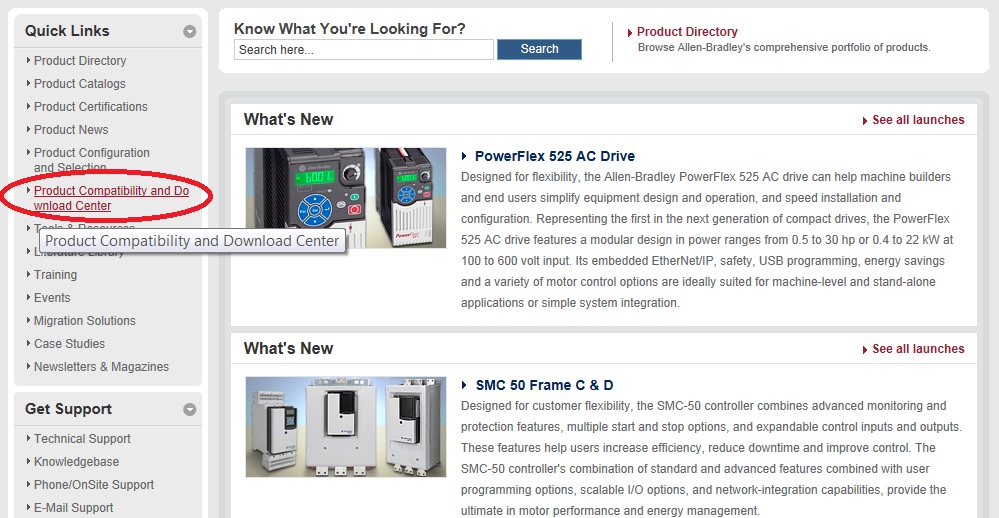
To do this, you’ll first identify the software package in question (for our example we’ll use RSLogix5000,) and then navigate to AB.com and click on the “product compatibility and download center” link (about halfway down on the left side of the page as shown in the below picture:)

AB.com Home Page Product Compatibility Link

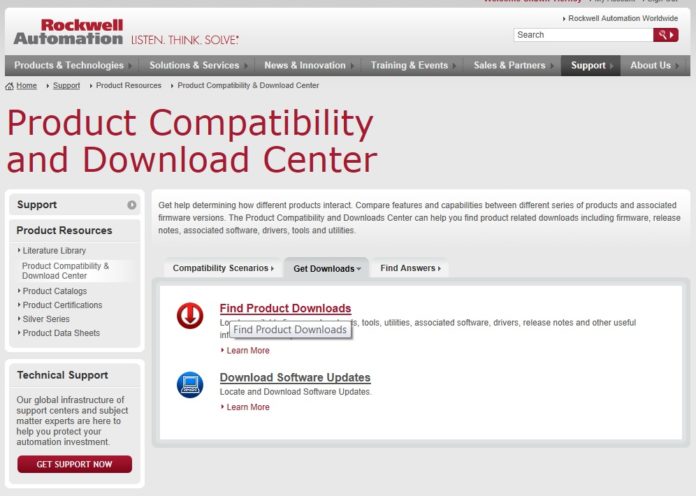
Next, click on the “get product downloads” tab and select “find product downloads:”

AB.com Find Product Downloads

Once that page comes up, type the name of your software into the product search box as shown below. In our example we typed in “RSlogix:”

AB.com Find Product Downloads Search

You should now see a list of “RSLogix” products displayed under the search box. Since we are looking for RSLogix 5000, we’ll click on that selection, and then click on version 20.01.01 as shown below:

AB.com Find Product Downloads Select Version

Now click the “find downloads” button on the bottom right of the page:

AB.com Find Product Downloads Find

Next, click on the icon of the gray box (hard drive) with the red arrow above it which is directly to the right of the version of software you would like to download (in our case v20.01.01:)

AB.com Find Product Downloads Download

Then, from the pop-up which follows choose the package which matches your language:

AB.com Find Product Downloads Download Popup

And finally, provide your company name and serial number to qualify for the update:

AB.com Find Product Downloads Qualify

At this point you should be provided with a link to download the program you’ve selected. However, if the qualification fails, you will need to verify the company name and serial number Rockwell has on file by either looking on the label on your original box of software, or by calling Rockwell Automation (or your local distributor) and asking them to look up your registration information.

I hope you’ve found the above information on how to download Rockwell Automation software updates from AB.com helpful. If you have any questions or would like to comment on the above article please feel free to click on the “post a comment or question” link below.

Until next time, Peace ✌️ 

If you enjoyed this content, please give it a Like, and consider Sharing a link to it as that is the best way for us to grow our audience, which in turn allows us to produce more content 🙂

Shawn M Tierney
Technology Enthusiast & Content Creator

Support our work and gain access to hundreds members only articles and videos by becoming a member at The Automation Blog or on YouTube. You’ll also find all of my affordable PLC, HMI, and SCADA courses at TheAutomationSchool.com.

Shawn Tierney

(no views)

Allen-Bradley and Rockwell Software support for Windows 7

AB.com Multi Product Compare Results


AB.com Home PageAlmost daily I’m asked about Rockwell Software (RS) and Allen-Bradley (A-B) software support for Windows 7.

While I haven’t memorized the list, the good news is Rockwell has put together an easy to use compatibility website which makes finding operating system support for it’s software a breeze.

Note: You can watch a video on using Rockwell’s compatibility website in our companion video blog HERE.

In a typically scenario, an Engineer or Maintenance Electrician is told he will be getting a new laptop. Hopefully his company has the foresight to provide him with Windows 7 Pro, and not Windows 7 Home which is not licensed for commercial use. It’s also assumed his company is not ready to move to Windows 8 which, because of Microsoft’s lack of backward compatibility for certain services, is not yet supported by many (if any) Rockwell products.

The first step the Engineer or Electrician should take is to inventory what software from A-B and RS he currently uses. In our example, we’ll assume our company man uses the following products:

  • RSLogix5
  • RSLogix500
  • RSLogix5000
  • PanelBuilder32
  • ViewStudioME

With the above list in mind, our second step is to head over to AB.com and click on the “product compatibility and download center” link (about halfway down on the left side of the page as shown in the below picture:)

AB.com Home Page Product Compatibility Link

Next, click on “multi product compare:”

AB.com Multi Product Compare Page

Once that page comes up, type “RSLogix 5” into the product search box as shown below:

AB.com Multi Product Compare Search

You should now see a list of “RSLogix” products displayed under the search box. Click on RSLogix 5, and then click on the latest version (in our example we would like to know if the newest release supports Windows 7:)

AB.com Multi Product Compare Results

Repeat the above steps for your remaining software. When done, you should have a list like the one circled below:

AB.com Multi Product Compare Listing

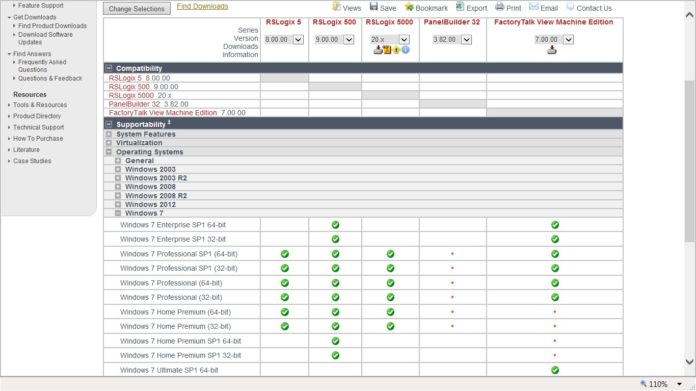
Now click the “compare selections” button on the bottom right of the page, and then expand the “Operating Systems, Windows 7” category. You will see a green circle with a checkbox for every version of Windows 7 the package is supported on:

AB.com Multi Product Compare Results

In our scenario, all the latest packages of our selected products do have native Windows 7 support, with the exception of PanelBuilder 32. However, this doesn’t mean it absolutely won’t work, but does typically mean Rockwell Tech Support will not support this product on Windows 7 do to either (a) known issues, or (b) lack of testing by the product group.

In those cases that a product is not supported by Windows 7, you can still use the product inside a virtualized system, utilizing either “XP Mode” (free Microsoft download for Windows 7 Pro users,) or VMware Workstation available from VMware.com for $250.00. Both of these virtualization packages are supported by Rockwell products per Rockwell’s public tech notes listed below:

I hope you’ve found the above information about Windows 7 support from Rockwell Automation helpful. If you have any questions or would like to comment on the above article please feel free to click on the “post a comment or question” link below.

Until next time, Peace ✌️ 

If you enjoyed this content, please give it a Like, and consider Sharing a link to it as that is the best way for us to grow our audience, which in turn allows us to produce more content 🙂

Shawn M Tierney
Technology Enthusiast & Content Creator

Support our work and gain access to hundreds members only articles and videos by becoming a member at The Automation Blog or on YouTube. You’ll also find all of my affordable PLC, HMI, and SCADA courses at TheAutomationSchool.com.

Shawn Tierney

(no views)

ControlLogix – Support for adding I/O online

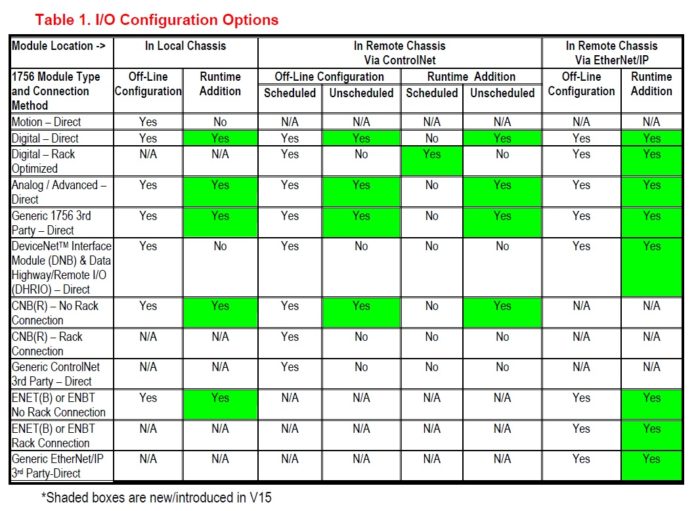
Rockwell Allen-Bradley's Logix-WP006 Table 1 - Adding I/O Online
Table 1 from Allen-Bradley Publication Logix-WP006 (no longer available)

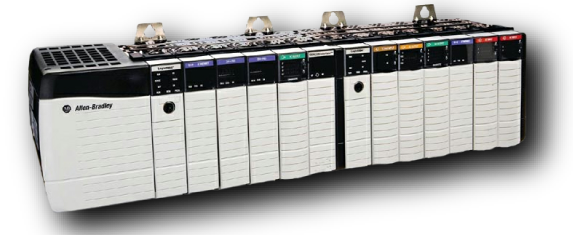
Rockwell Allen-Bradley's ControlLogixA common client question of late is what are the abilities of the ControlLogix when is comes to adding I/O online.

In certain industries, processes can’t shut down as doing so would lead to loss of production or in extreme cases damage to the production line. In these situations, the more you can do while the production line is running, the better off you are. Allen-Bradley has had robust online program editing for decades, as well as I/O support for RIUP (removal and insertion under power,) but the online addition of I/O in the ControlLogix family is a more recent development.

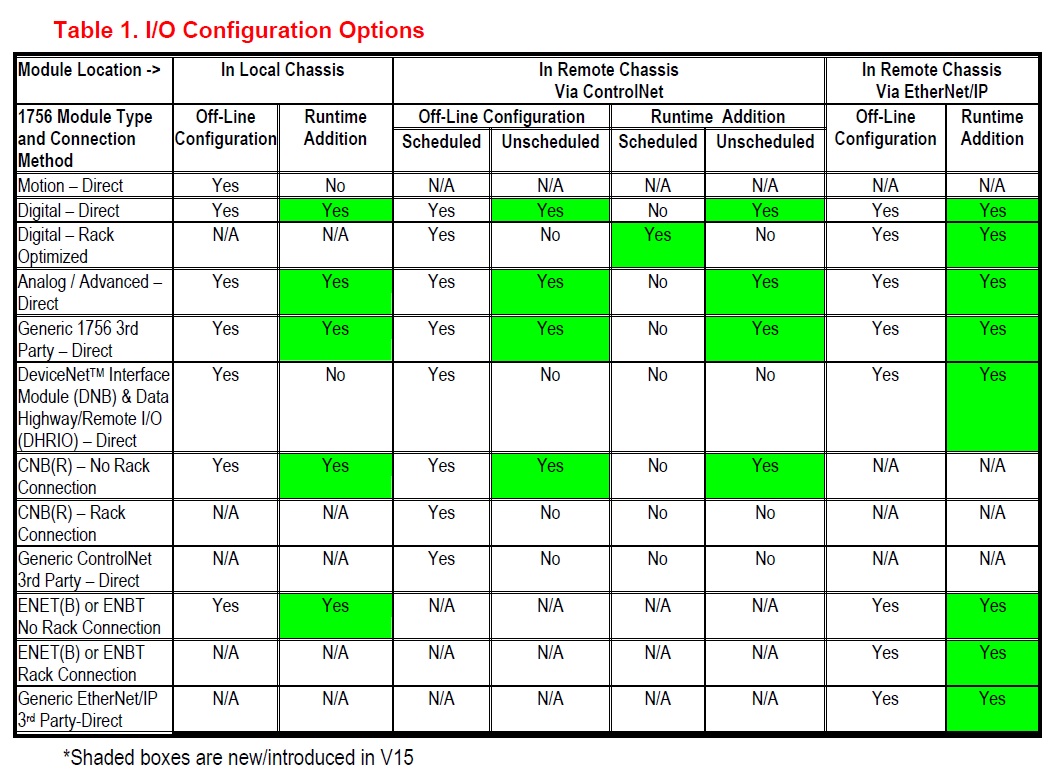
The first phase of support for this feature was in version 15 of the ControlLogix. In that version you could add most 1756 I/O while the processor was in the remote run mode, either in the local 1756 I/O rack with the processor, or remotely on ControlNet or Ethernet.

When adding I/O online on ControlNet, the I/O is placed in the unscheduled bandwidth portion of the “Network Update Time” (aka NUT) which would be more than adequate for most process applications, by may not have the update rate and repeatability needed for high speed applications.

Rockwell Allen-Bradley's Logix-WP006 Table 1 - Adding I/O Online
Table 1 from Allen-Bradley Publication Logix-WP006 (no longer available)

Note: For details about RSLogix and Studio 5000 support for adding I/O online in remote run, please reference the following manual from Allen-Bradley (A-B:)

NOTE: The above document is no longer available, so in it’s place refer to the user manual, 1756-UM001.

The second phase of support for adding I/O online with ControlLogix came with version 18. This version added many new devices to the support list, including:

  • 1756-CN2, 1756-CN2R, 1756-CN2RXT
  •  1756-EN2t, 1756-EN2TR, 1756-EN2TRXT, 1756-EN3TR
  • PowerFlex 4, 40, 400, 400P
  • PowerFlex 70, 700, 700s, 7000
  • PowerFlex 753, 755
  • PowerFlex DC
  • 1305, 1336E, 1336F, 1336R, 1336S, 1336T, 1397
  • 1757- FFLD

Note: For details about v18’s added support for adding devices to a ControlLogix system online in remote run, please reference the following manual from Allen-Bradley:

I hope you’ve found the above information and links about adding I/O online to a ControlLogix helpful. If you have a question or comment please click on the “post a comment or question” link below to comment on this article.

Until next time, Peace ✌️ 

If you enjoyed this content, please give it a Like, and consider Sharing a link to it as that is the best way for us to grow our audience, which in turn allows us to produce more content 🙂

Shawn M Tierney
Technology Enthusiast & Content Creator

Support our work and gain access to hundreds members only articles and videos by becoming a member at The Automation Blog or on YouTube. You’ll also find all of my affordable PLC, HMI, and SCADA courses at TheAutomationSchool.com.

Shawn Tierney

(no views)

View Studio – Can you save Machine Edition 7.0 project as a previous version?

ViewStudio Splash

A client recently asked how he could save or export a FactoryTalk ViewStudio Machine Edition 7.0 project as a previous, older version.

As FactoryTalk ViewStudio users know, there is no way to perform a “save project as” a previous version in the software. However, the software does allow for saving runtime files (.mer) as previous versions, and some of those files can be imported back into ViewStudio as a project using the Application Manager.

With that in mind, I offered to test out whether or not runtime files created with ViewStudio 7.0 (but saved as previous version .mer’s) would be able to be turned back into a ViewStudio projects in those older versions.

To begin, I went through the steps to create a runtime file. As you can see below, the system defaults to v7.0 and all the “conversion to development” options are available:

FTViewME-Pre-Ver-70

For my first test I would use v7 to save a runtime file as 6.1, the only other version of ViewStudio with the new MS SQL Server Tag Database (for Windows 7 64 bit compatibility.)

As you can see in the below image, just as when v7 was selected, all the “conversion to development” options are still available when v6.1 is chosen:

FTViewME-Pre-Ver-61After creating the v6.1 .mer I moved it to my VMware image with ViewStudio v6.1 and used the application manager to restore the project. I then opened it in ViewStudio without issue. Success!

For the next test, I used v7 to save a runtime file for v6.0, but was immediately disappointed as the “conversion to development” options were no longer available as can be seen in the below screenshot:

FTViewME-Pre-Ver-60I thought this was quite strange as, if v7 could created the .mer for v6.0, why could it also not include the 6.0 development files as well?

With no built-in means of restoring an application from a v6.0 mer file, the only option left that I could think of was using the old Rockwell Tech Note #8913, “Recovering a Project from the MER File” (requires a support contract.) Unfortunately, at the point in the procedure where you import the .MED file from the temporary “~Mer” folder, I received the following error:

FTViewME-7-recover-MERAnd with that “error message” the writing was on the wall. I imagine that somewhere in the .mer file there is a flag of some sort which, while allowing the .mer file to run on v6 systems, it somehow prevents the project from being imported back into ViewStudio v6.0.

Well, if you have any comments or questions on the above, or if you have other ideas on how to get a v7 project into v6.0, please let us know by using the “post a comment or question” link below.

Until next time, Peace ✌️ 

If you enjoyed this content, please give it a Like, and consider Sharing a link to it as that is the best way for us to grow our audience, which in turn allows us to produce more content 🙂

Shawn M Tierney
Technology Enthusiast & Content Creator

Support our work and gain access to hundreds members only articles and videos by becoming a member at The Automation Blog or on YouTube. You’ll also find all of my affordable PLC, HMI, and SCADA courses at TheAutomationSchool.com.

Shawn Tierney

(no views)

PLC-5 – How to add Ethernet Communications

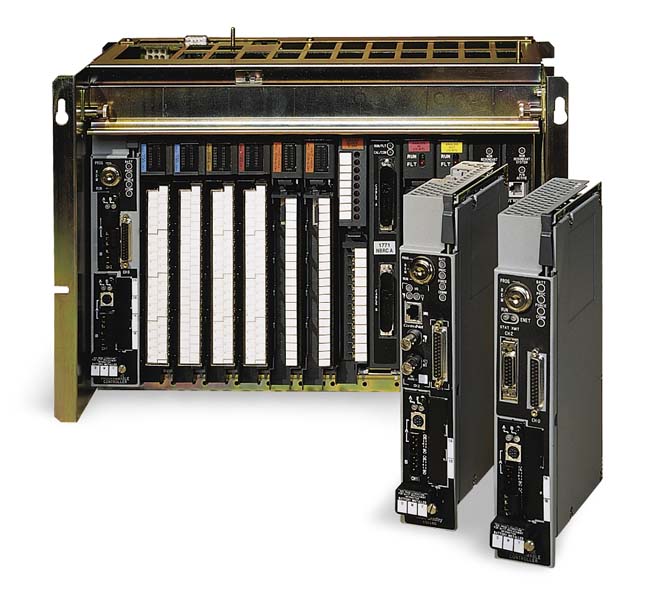
PLC-5

PLC-5Today you’ll find Ethernet in almost every manufacturing facility, and on most all modern automation systems. But many facilities also have an installed base of legacy PLC-5 systems, and often clients call asking how they can add Ethernet connectivity to their legacy PLC-5’s.

Before we answer that question, lets first review the communication options available on the PLC-5 processor.

The original processors (5/10, 5/12, 5/15, & 5/25) which were released beginning in 1985, came with two connectivity options built into every model:

  1. Data Highway Plus (DH+, also known as Peer Communication Interface or PCI)
  2. Remote I/O (RIO.)

The second generation of PLC-5 processors (5/11, 5/20, 5/30, 5/40, 5/60, 5/80,) known as the “New Platform” (NP) PLC-5,  had an additional 25 pin RS-232 port, and could also be ordered with an optional Ethernet or ControlNet port.

So for all those PLC-5 processors without the built-in Ethernet port I list five options below which allow you to add Ethernet communications to your non-Ethernet PLC-5:


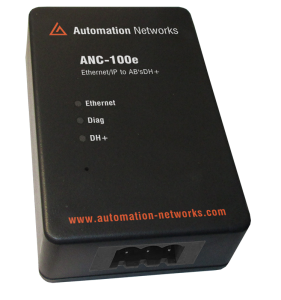
New Option: ANC-100e EtherNet/IP to DH+ Gateway

From ANC: “The ANC-100e is an economical and high performance, “pocket-sized” converter interfacing Factory Automation Devices between Ethernet/IP and Allen-Bradley Data Highway Plus DH+”

Pros:

Works with any DH+ device

Cons:

It’s not free?

PNs and Prices

ANC-100e EtherNet/IP to Allen Bradley DH+ Gateway $1,195.


Option 1: EtherNet/IP to Allen Bradley Remote I/O or DH+ Gateway (works with all DH+ devices)

AN-X2-AB-DHRIOFrom Prosoft: “The EtherNet/IP to Remote I/O or DH+ (AN-X2-AB-DHRIO) Gateway is designed to help customers initiate a phased migration approach to replacing or upgrading legacy Remote I/O, HMI’s or Drives. The AN-X2-AB-DHRIO gateway has multiple operating modes that are selected during initial configuration and are described below..”

Pros:

Works with any DH+ device

Cons:

It’s not free?

PNs and Prices

AN-X2-AB-DHRIO  EtherNet/IP to Allen Bradley Remote I/O or DH+ Gateway $1,895.


Option 2: 1756 DH+ to Ethernet Gateway (works with all DH+ devices)

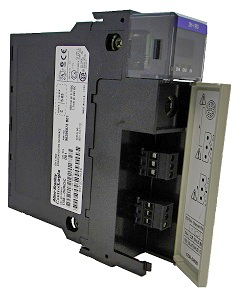
A very common option to bridge from Ethernet to DH+, CNET, and DNET, a 1756 chassis with an Ethernet module and a single DHRIO module provides for the bridging from Ethernet to two DH+ networks at 57.6K or 115K, or one DH+ at 230K.

Pros:

One Ethernet gateway to many networks

Direct access to PLC-5 Data Tables

No programming needed to bridge Ethernet to DH+

Add additional modules for additional networks: ControlNet, Devicenet, DH+, DH-485, or 3rd party modules from Prosoft

Cons:

Expensive solution for a single PLC

PNs and Prices

1756-A7: 7 SLOT CONTROLLOGIX CHASSIS   $504.00 list price from A-B

1756-ENBT: CLX ETHERNET/IP BRIDGE $2150.00 list price from A-B

1756-PA75: 85-265V AC POWER SUPPLY   $911.00 list price from A-B

1756-DHRIO: DH+/RIO BRIDGE $1,910.00 list price from A-B


(Obsolete) Option 3: DF1 to Ethernet/IP converter: (New Platform PLC-5 models only)

1761-NET-ENIIf your New Platform PLC-5’s serial port is available, you can easily add a DF1 to Ethernet/IP converter (1761-NET-ENI.)

Pro’s:

Least expensive option

Direct access to PLC-5 Data Table

Has built in email capability (converts PLC MSG to an email)

ENI configuration is done with a free utility

Con’s:

Only three simultaneous bi-directional connections to PLC-5 at any given time

The PLC-5 serial port is limited to 19.2K (low bandwidth)

Requires PLC-5 NP processor with available serial port

If you have an HMI on the serial port you can use the A-B Serial DF1 port splitter (1747-DPS1) but you’ll be splitting the bandwidth with the HMI.

PNs and Prices

1761-NET-ENI

$893.00 list price from A-B

1761-CBL-PM02

$74.10 list price from A-B

$25.00 from Amazon

9 Pin to 25 Pin adapter

$10 from Amazon


(Obsolete) Option 4: ENET Sidecar: (New Platform PLC-5 models only, firmware upgrade may be needed, )

PLC-5 ENETIf your New Platform PLC-5 has the correct firmware, or if you’re willing to purchase the firmware upgrade, and you have the ability to move whatever module you have in the first I/O slot (directly to the right of the processor,) the 1785-ENET Ethernet sidecar is an option you can consider.

Pros:

High Speed connection to PLC-5

Direct access to PLC-5 Data Table

Channel 3a configuration is simple

Cons:

Need to move and readdress I/O module in slot 1

Will likely need to update PLC-5 firmware chip which can be expensive

PNs and Prices

1785-ENET

$3720.00 list price from A-B

5/80 Firmware

~$685.00 from A-B (most expensive version, price circa 2005)


(Obsolete) Option 5: Prosoft Ethernet Module for 1771 Chassis and all PLC-5 Processors: (works will all PLC-5 models)

MVI71From Prosoft: “Support for the storage and transfer of up to 4000 registers to/from the PLC processor using the block transfer. The module can send read or write commands to remote devices on the Ethernet/IP network. The MVI71-DFNT also has 20 servers that allows the module to receive commands from remote devices. The MVI71-DFNT Pass-Through server allows the user to edit, download, and upload the PLC ladder logic using an Ethernet connection. Up to 100 commands can be configured by the user.”

Pros:

Works with any PLC-5 in any SLOT

Cons:

Requires programming (Prosoft tech support historically has been good)

– Block Transfers needed in PLC-5 Program

PNs and Prices

MVI71-DFNT EhterNet /IP Communication Module ~$2,159 (circa 2005)


I hope you’ve found this article about how to add Ethernet to non-Ethernet versions of the Allen-Bradley PLC-5 helpful. If you have a question or would like to offer your own option please click on the “post a comment or question” link below to comment on this article.

Until next time, Peace ✌️ 

If you enjoyed this content, please give it a Like, and consider Sharing a link to it as that is the best way for us to grow our audience, which in turn allows us to produce more content 🙂

Shawn M Tierney
Technology Enthusiast & Content Creator

Support our work and gain access to hundreds members only articles and videos by becoming a member at The Automation Blog or on YouTube. You’ll also find all of my affordable PLC, HMI, and SCADA courses at TheAutomationSchool.com.

Shawn Tierney

(no views)

Micro800 – “How To” Videos from Allen-Bradley Part 3

Micro800 YouTube Advanced Featured Image

Today in the final part of our three part series, we’ll list the beginner Micro800 Family “How To” Videos Rockwell has posted to YouTube.com.

Using Advanced Instructions In Ladder Logic / Ladder Diagram

Micro800 Programming – Use LOG Instruction in Ladder Diagram Program by ROKAutomation

How to use Connected Components Workbench software for LOG instruction in ladder diagram program.


Micro800 Programming – Use EXPT Instruction in Ladder Diagram Program by ROKAutomation

How to use Connected Components Workbench software for EXPT instruction in ladder diagram program.


Micro800 Programming – Use POW Instruction in Ladder Diagram Program by ROKAutomation

How to use Connected Components Workbench software for POW instruction in ladder diagram program.

Micro800 Programming – Use SCALER Instruction in Ladder Diagram Program by ROKAutomation

How to use Connected Components Workbench software for SCALER instruction in ladder diagram program.


Micro800 Programming – Use SQRT Instruction in Ladder Diagram Program by ROKAutomation

How to use Connected Components Workbench software for SQRT instruction in ladder diagram program.


Micro800 Programming – Use ABS Instruction in Ladder Diagram Program by ROKAutomation

How to use Connected Components Workbench software for ABS instruction in ladder diagram program.


Micro800 Programming – Use LIMIT Instruction in Ladder Diagram Program by ROKAutomation

How to use Connected Components Workbench software for LIMIT instruction in ladder diagram program.


Micro800 Programming – Use ASCII Instruction in Ladder Diagram Program by ROKAutomation

How to use Connected Components Workbench software for ASCII instruction in ladder diagram program.


Micro800 Programming – Use R_TRIG Instruction in Ladder Diagram Program by ROKAutomation

How to use Connected Components Workbench software for R_TRIG instruction in ladder diagram program.


Micro800 Programming – Use TOW Instruction in Ladder Diagram Program by ROKAutomation

How to use Connected Components Workbench software for TOW instruction in ladder diagram program.


Micro800 Programming – Use TDF Instruction in Ladder Diagram Program by ROKAutomation

How to use Connected Components Workbench software for TDF instruction in ladder diagram program.


Micro800 Programming – Use LCD Instruction in Ladder Diagram Program by ROKAutomation

How to use Connected Components Workbench software for LCD instruction in ladder diagram program.


Using Advanced Instructions In Function Block Diagram

Micro800 Programming – Use EXPT Instruction in Function Block Diagram Program by ROKAutomation

How to use Connected Components Workbench software for EXPT instruction in function block diagram program.


Micro800 Programming – Use POW Instruction in Function Block Diagram Program by ROKAutomation

How to use Connected Components Workbench software for POW instruction in function block diagram program.


Micro800 Programming – Use SCALER Instruction in Function Block Diagram Program by ROKAutomation

How to use Connected Components Workbench software for SCALER instruction in function block diagram program.


Micro800 Programming – Use SQRT Instruction in Function Block Diagram Program by ROKAutomation

How to use Connected Components Workbench software for SQRT instruction in function block diagram program.


Micro800 Programming – Use R_TRIG Instruction in Function Block Diagram Program by ROKAutomation

How to use Connected Components Workbench software for R_TRIG instruction in function block diagram program.


Micro800 Programming – Use LCD Instruction in Function Block Diagram Program by ROKAutomation

How to use Connected Components Workbench software LCD instruction in function block diagram program.


Micro800 Programming – Use ABS Instruction in Function Block Diagram Program by ROKAutomation

How to use Connected Components Workbench software for ABS instruction in function block diagram program.


Micro800 Programming – Use LIMIT Instruction in Function Block Diagram Program by ROKAutomation

How to use Connected Components Workbench software for LIMIT instruction in function block diagram program.


Micro800 Programming – Use TOW Instruction in Function Block Diagram Program by ROKAutomation

How to use Connected Components Workbench software for TOW instruction in function block diagram program.


Using Advanced Instructions In Structured Text

Micro800 Programming – Use EXPT Instruction in Structured Text Program by ROKAutomation

How to use Connected Components Workbench software for EXPT instruction in structured text program.


Micro800 Programming – Use POW Instruction in Structured Text Program by ROKAutomation

How to use Connected Components Workbench software for POW instruction in structured text program.


Micro800 Programming – Use SCALER Instruction in Structured Text Program by ROKAutomation

How to use Connected Components Workbench software for SCALER instruction in structured text program.


Micro800 Programming – Use SQRT Instruction in Structured Text Program by ROKAutomation

How to use Connected Components Workbench software for SQRT instruction in structured text program.


Micro800 Programming – Use ABS Instruction in Structured Text Program by ROKAutomation

How to use Connected Components Workbench software for ABS instruction in structured text program.


Micro800 Programming – Use R_TRIG Instruction in Structured Text Program by ROKAutomation

How to use Connected Components Workbench software for R_TRIG instruction in structured text program.


Micro800 Programming – Use TOW Instruction in Structured Text Program by ROKAutomation

How to use Connected Components Workbench software for TOW instruction in structured text program.


Micro800 Programming – Use TDF Instruction in Structured Text Program by ROKAutomation

How to use Connected Components Workbench software for TDF instruction in structured text program.


Micro800 Programming – Use LCD Instruction in Structured Text Program by ROKAutomation

How to use Connected Components Workbench software for LCD instruction in structured text program.


Micro800 Programming – Use LIMIT Instruction in Structured Text Program by ROKAutomation

How to use Connected Components Workbench software for LIMIT instruction in structured text program.


Micro800 Programming – Call Instruction Block in Structured Text Program by ROKAutomation

How to use Connected Components Workbench software to call instruction block in structured text program.

http://www.youtube.com/embed/aJt7aSe3yQ8: Video removed by Rockwell


I hope you’ve found this listing of Rockwell’s AB.com Training Videos on the Micro800 helpful. Tomorrow we’ll list many more.

If you would like to offer your own opinion or comment on the usefulness of these videos please click on the “post a comment or question” link below to share your comments on this article.

Until next time, Peace ✌️ 

If you enjoyed this content, please give it a Like, and consider Sharing a link to it as that is the best way for us to grow our audience, which in turn allows us to produce more content 🙂

Shawn M Tierney
Technology Enthusiast & Content Creator

Support our work and gain access to hundreds members only articles and videos by becoming a member at The Automation Blog or on YouTube. You’ll also find all of my affordable PLC, HMI, and SCADA courses at TheAutomationSchool.com.

Shawn Tierney

(no views)

Micro800 – “How To” Videos from Allen-Bradley Part 2

Automation-Fair-2014-AB-Micro800

Today in part two of our three part series we’ll list the beginner Micro800 Family “How To” Videos Rockwell has posted to YouTube.com.

Article Updated May, 2019:

Introductions to the Micro800 Family

Allen-Bradley Micro810 Introductory Video by ROKAutomation

Thomas Sugimoto, Global Marketing Manager of Micro800 Controllers introduces the features and benefits of engaging Micro810 controller for your applications.


Allen-Bradley Micro830 Introductory Video by ROKAutomation

Thomas Sugimoto, Global Marketing Manager of Micro800 Controllers introduces the features and benefits of engaging Micro830 controller for your applications.

Allen-Bradley Micro850 Introductory Video by ROKAutomation

Thomas Sugimoto, Global Marketing Manager of Micro800 Controllers introduces the features and benefits of engaging Micro850 controller for your applications.


Allen-Bradley Micro850 Introductory Animation by ROKAutomation

The animated video showcases the flexibility and customization that brings higher I/O performance to the Allen-Bradley Micro850 controller from Rockwell Automation. The video demonstrates how easily the power supply, plug-in modules, expansion I/O modules, and terminal blocks can be attached and re…


Micro800 How-To

Modernize from MicroLogix Controllers with Micro800 by ROKAutomation


Micro800 Programming – Change Program Execution Order by ROKAutomation

How to use Connected Components Workbench software to change the order of program execution.


Micro800 Programming – Configure Interrupts by ROKAutomation

How to use Connected Components Workbench software to configure interrupts for Micro800 controller.


Micro800 Controller Programming – LCD in Ladder Diagram by ROKAutomation


Micro800 Controller Programming – LOG in Ladder Diagram by ROKAutomation


Micro800 Controller Programming – SQRT in Structured Text by ROKAutomation


Micro800 Controller – Create and Use User-Defined Function Blocks (R8) by ROKAutomation


Micro800 Controller Programming – EXPT in Structured Text by ROKAutomation


Micro800 Controller Programming – SQRT in Function Block Diagram by ROKAutomation


Micro800 Controller Programming – SCALER in Ladder Diagram by ROKAutomation


Micro800 Controller Programming – ABS in Structured Text by ROKAutomation


Micro800 Programming – Configure Workspace by ROKAutomation

How to use Connected Components Workbench software to configure workspace for Micro800 controller.

http://www.youtube.com/embed/APJnsQtVrK8: Video removed by Rockwell


Micro800 Programming – Create First Project by ROKAutomation

How to use Connected Components Workbench software to create first project for Micro800 controller.

http://www.youtube.com/embed/APJnsQtVrK8: Video removed by Rockwell

http://www.youtube.com/embed/-E1QflY4EfU: Video removed by Rockwell


Micro800 Programming – Assign Variable Value by ROKAutomation

How to use Connected Components Workbench software to assign variable value for Micro800 controller.

http://www.youtube.com/embed/SobWBV9butI: Video removed by Rockwell


Micro800 Programming – Define Variables in Ladder Diagram Program by ROKAutomation

How to use Connected Components Workbench software to to define variable in ladder diagram program.

http://www.youtube.com/embed/TRrDEKvgU1w: Video removed by Rockwell


Micro800 Programming – Define Variables in Function Block Diagram Program by ROKAutomation

How to use Connected Components Workbench software to to define variable in function block diagram program.

http://www.youtube.com/embed/RCQqR6XyQ68: Video removed by Rockwell


Micro800 Programming – Define Variables in Structured Text Program by ROKAutomation

How to use Connected Components Workbench software to to define variable in structured text program.

http://www.youtube.com/embed/_wKIb6sQ53o: Video removed by Rockwell


Micro800 Programming – Build First Project by ROKAutomation

How to use Connected Components Workbench software to build first project for Micro800 controller.

http://www.youtube.com/embed/AiFH_Pm7B3o: Video removed by Rockwell


Micro800 Programming – Download Project to Micro800 controller by ROKAutomation

How to use Connected Components Workbench software to download project to Micro800 controller.

http://www.youtube.com/embed/OPzc_mvnKRo: Video removed by Rockwell


Micro800 Programming – Debugging First Program by ROKAutomation

How to use Connected Components Workbench software to debug your first program on Micro800 controller.

http://www.youtube.com/embed/U0HVnNRNfe4: Video removed by Rockwell

I hope you’ve found the above links to Rockwell’s basic Micro800 YouTube videos helpful. Tomorrow we’ll list the more advanced videos.

If you would like to offer your own opinion, or comment on the usefulness of these videos, please click on the “post a comment or question” link below to share your comments on this article.

Until next time, Peace ✌️ 

If you enjoyed this content, please give it a Like, and consider Sharing a link to it as that is the best way for us to grow our audience, which in turn allows us to produce more content 🙂

Shawn M Tierney
Technology Enthusiast & Content Creator

Support our work and gain access to hundreds members only articles and videos by becoming a member at The Automation Blog or on YouTube. You’ll also find all of my affordable PLC, HMI, and SCADA courses at TheAutomationSchool.com.

Shawn Tierney

(no views)

Micro800 – “How To” Videos from Allen-Bradley Part 1

Micro800 AB.com Video 3

Micro800 AB.com Video 1When Rockwell released it’s new Micro800 PLC and the Connected Component Workbench (CCW) programming software, it knew that new users were going to need some help getting to know how to program this new product.

With that in mind Rockwell created dozens of “How To” videos for the Micro800, and in this the first of a three part series I’ll list the five videos which Rockwell hosts at AB.com, and provide a direct link to view each one:

http://www.Allen-Bradley.com hosted training videos for the Micro800 and CCW:

I hope you’ve found this listing of Rockwell’s AB.com Training Videos on the Micro800 helpful. Tomorrow we’ll list many more.

If you would like to offer your own opinion or comment on the usefulness of these videos please click on the “post a comment or question” link below to share your comments on this article.

Until next time, Peace ✌️ 

If you enjoyed this content, please give it a Like, and consider Sharing a link to it as that is the best way for us to grow our audience, which in turn allows us to produce more content 🙂

Shawn M Tierney
Technology Enthusiast & Content Creator

Support our work and gain access to hundreds members only articles and videos by becoming a member at The Automation Blog or on YouTube. You’ll also find all of my affordable PLC, HMI, and SCADA courses at TheAutomationSchool.com.

Shawn Tierney

(no views)

ViewME, PanelView Plus – Quick Start Videos

FactoryTalk View Studio Quick Start Videos Section 3 First Project A

FactoryTalk View Studio Quick Start Videos Section 2 ConnectRockwell’s FactoryTalk View Studio Machine Edition (ViewME) and PanelView Plus (PVPlus) can be a little challenging for new users to learn. I still remember my own frustration trying to setup RSLinx Enterprise for the first time when I received my beta copy of FactoryTalk View Studio 3.0 back in late 2003.

Since then, Rockwell has released nearly a dozen FactoryTalk View Studio Machine Edition (ViewME) and PanelView Plus (PVPlus) Quick Start Videos on their Allen-Bradley website at http://www.AB.com, and in today’s article I’ll list all of these videos, and provide a direct link to view each one:

FactoryTalk View Studio Quick Start Videos Section 3 First Project ASection 1: Getting Started with FactoryTalk ViewStudio

Video 1: Glossary of Terms

Section 2: Getting Connected with FactoryTalk ViewStudio

Video 2: Set Up a PanelView Plus for Communications

Video 3: Select and Connect Communication Cables

Section 3: My First Project with FactoryTalk ViewStudio

FactoryTalk View Studio Quick Start Videos Section 3 First Project BVideo 4: Create a New Application and Define Startup Settings

Video 5: Set Up Communications within an Application

Video 6: Define Project Settings

Video 7: Create a New Graphic Display and Add a Numeric Display Object

Video 8: Create Navigation Buttons

Video 9: Test a Graphic Display and the Application

Video 10: Create a Runtime File

Video 11: Download the Runtime Application to the PanelView Plus Terminal

I hope you’ve found this listing of Rockwell’s FactoryTalk View Studio Machine Edition (ViewME) and PanelView Plus (PVPlus) Quick Start Videos helpful. If you have, or would like to offer your own opinion on the usefulness of these Rockwell videos please click on the “post a comment or question” link below to comment on this article.

Until next time, Peace ✌️ 

If you enjoyed this content, please give it a Like, and consider Sharing a link to it as that is the best way for us to grow our audience, which in turn allows us to produce more content 🙂

Shawn M Tierney
Technology Enthusiast & Content Creator

Support our work and gain access to hundreds members only articles and videos by becoming a member at The Automation Blog or on YouTube. You’ll also find all of my affordable PLC, HMI, and SCADA courses at TheAutomationSchool.com.

Shawn Tierney

(no views)

RSLogix 5000 “How To” Start Page Videos from Rockwell Allen-Bradley (A-B)

RSLogix 5000 Start Page Videos Section 2 Connect

UPDATE, September 2020: Seems like the recent update to Rockwell’s website has killed off all of the links in this article as well as the Rockwell Tech Note (published in 2020) which is a copy of this article.

While I have reported this to Rockwell, there’s no telling if or when the links will return, so until then you can still find these videos in RSLogix 5000 starting at v16, through Studio 5000 Logix Designer up through version 30.


Rockwell’s RSLogix 5000 includes over fifty “How To” getting started videos designed to aid new users, or to introduce new features to existing users.

These video “media files” which are found in the RSLogix 5000 “Start Page” often go unnoticed, as does the fact that Rockwell also makes these videos available free of charge on their  Allen-Bradley (A-B) website at http://www.AB.com.

In today’s article I’ll list all fifty six of these videos, and provide a direct link to view each one:

RSLogix 5000 Start Page Videos Section 1 StartSection 1: Getting Started with RSLogix 5000

Video 1: Manage Windows

Video 2: Navigate with the Mouse & Keyboard

Video 3: Glossary of Terms

Section 2: Get Connected with RSLogix 5000

Video 4: Configure a Serial Driver

Video 5: Load Firmware in a New Controller

Video 6: Assign an IP Address to a Controller

Video 7: Configure an EtherNet/IP Driver

Section 3: My First Project with RSLogix 5000

RSLogix 5000 Start Page Videos Section 2 ConnectVideo 8: Create a New Project

Video 9:  Modify the Main Task

Video 10:  Modify the Main Program

Video 11: Modify the Main Routine

Video 12: Configure an Input Module

Video 13: Configure an Output Module

Video 14: Create a Tag

Video 15: Create a User-Defined Data Type

RSLogix 5000 Start Page Videos Section 3 First ProjectVideo 16: Enter Ladder Diagram Routine Logic

Video 17: Reference a Tag in a Routine

Video 18: Verify a Project

Video 19: Download a Project

Video 20: Go Online

Video 21: Change a Controller’s Mode

Video 22: Monitor & Edit Data Online

Section 4: Learn more about RSLogix 5000

Video 23: Import Online — Programs, Routines and Instructions

RSLogix 5000 Start Page Videos Section 4 MoreVideo 24: Product Documentation Language Switching

Video 25: Create an Alias Tag

Video 26: Produce and Consume a Tag

Video 27: Find and Clear a Major or Minor Fault

Video 28: Toggle a Bit

Video 29: Clear I/O Communication Faults

Video 30: Force I/O

Video 31: Update a Module’s Firmware

Video 32: Search by Cross Reference

Video 33: Search for Components

Video 34: Identify Tags for I/O Data

Video 35: Enter a Function Block Diagram

Video 36: Enter Structured Text

Video 37: Enter a Sequential Function Chart

RSLogix 5000 Start Page Videos Section 5 AdvancedVideo 38: Create a Program

Video 39: Create a Periodic Task

Video 40: Change the Program Schedule of a Task

Video 41: Change a Running Ladder Diagram Routine

Video 42: Change a Running Function Block, Sequential Function Chart, or Structured Text Routine

Video 43: Configure an Equipment Phase

Video 44: Configure a Pre-state Routine and Equipment Phase

Video 45: Change an Equipment Phase’s State Manually

Section 5: RSLogix 5000 Advanced Topics

Video 46: Logix-based Alarms

Video 47: GuardLogix

Video 48: Kinematics

Video 49: PhaseManager

RSLogix 5000 Start Page Videos Section 6 Add OnsAdd-On Instructions

Video 50: Introduction to Add-On Instructions

Video 51: Creating Add-On Instructions

Video 52: Using Add-On Instructions in a Routine

Video 53: Monitoring Add-On Instruction Code

Video 54: Changing an Add-On Instruction

Video 55: Protecting an Add-On Instruction

Video 56: Using an Add-On Instruction in a New Project

I hope you’ve found this listing of Rockwell’s RSLogix 5000 Quick Start videos helpful. If you have, or would like to offer your own opinion on the usefulness of these Rockwell videos please click on the “post a comment or question” link below to comment on this article.

Until next time, Peace ✌️ 

If you enjoyed this content, please give it a Like, and consider Sharing a link to it as that is the best way for us to grow our audience, which in turn allows us to produce more content 🙂

Shawn M Tierney
Technology Enthusiast & Content Creator

Support our work and gain access to hundreds members only articles and videos by becoming a member at The Automation Blog or on YouTube. You’ll also find all of my affordable PLC, HMI, and SCADA courses at TheAutomationSchool.com.

Shawn Tierney

(no views)

Where to download Rockwell Allen-Bradley (A-B) trade show and event session materials

Rockwell Automation On The Move Downloads


Rockwell Automation (RA) holds several commercial events and trade shows each year, and most of them include hands-on labs, technical sessions, and demonstration workshops. Below you’ll find links to detailed instructions on how to find and download these materials.

1) For details on how to find and download Automation Fair hands-on lab, technical session, and demonstration workshop session materials use the below article link:

Where to find Automation Fair session materials

Automation Fair Home Page

2)  For details on how to find and download Rockwell’s Process Solutions User Group session materials use the below article link:

Where to find PSUG session materials

Process Solutions User Group Homepage

 3) For details on how to find and download Rockwell Automation On The Move session materials use the below article link:

Where to find RAOTM session materials

Rockwell Automation On The Move Homepage

4) For details on how to find and download RSTechED session materials use the below article link:

Where to find RSTechED session materials

RSTechED Homepage

I hope you find the above collection of articles on how to find and download Rockwell commercial event session materials helpful.

If you did, or if you have a question about an event, please feel free to let us know by using the “post a comment or question” link below.

Until next time, Peace ✌️ 

If you enjoyed this content, please give it a Like, and consider Sharing a link to it as that is the best way for us to grow our audience, which in turn allows us to produce more content 🙂

Shawn M Tierney
Technology Enthusiast & Content Creator

Support our work and gain access to hundreds members only articles and videos by becoming a member at The Automation Blog or on YouTube. You’ll also find all of my affordable PLC, HMI, and SCADA courses at TheAutomationSchool.com.

Shawn Tierney

(no views)

Where to find RSTechED Session Downloads

RSTechED Homepage

Update: Check out our updated article HERE.

Today we continue this week’s theme of how and where to download session materials from Rockwell’s commercial events by discussing Rockwell’s …

RSTechED

Rockwell’s RSTechED is a weeklong training event for customers, integrators, distributors, and Rockwell personnel. It is by far my favorite event, well when it’s on the East Coast 😉

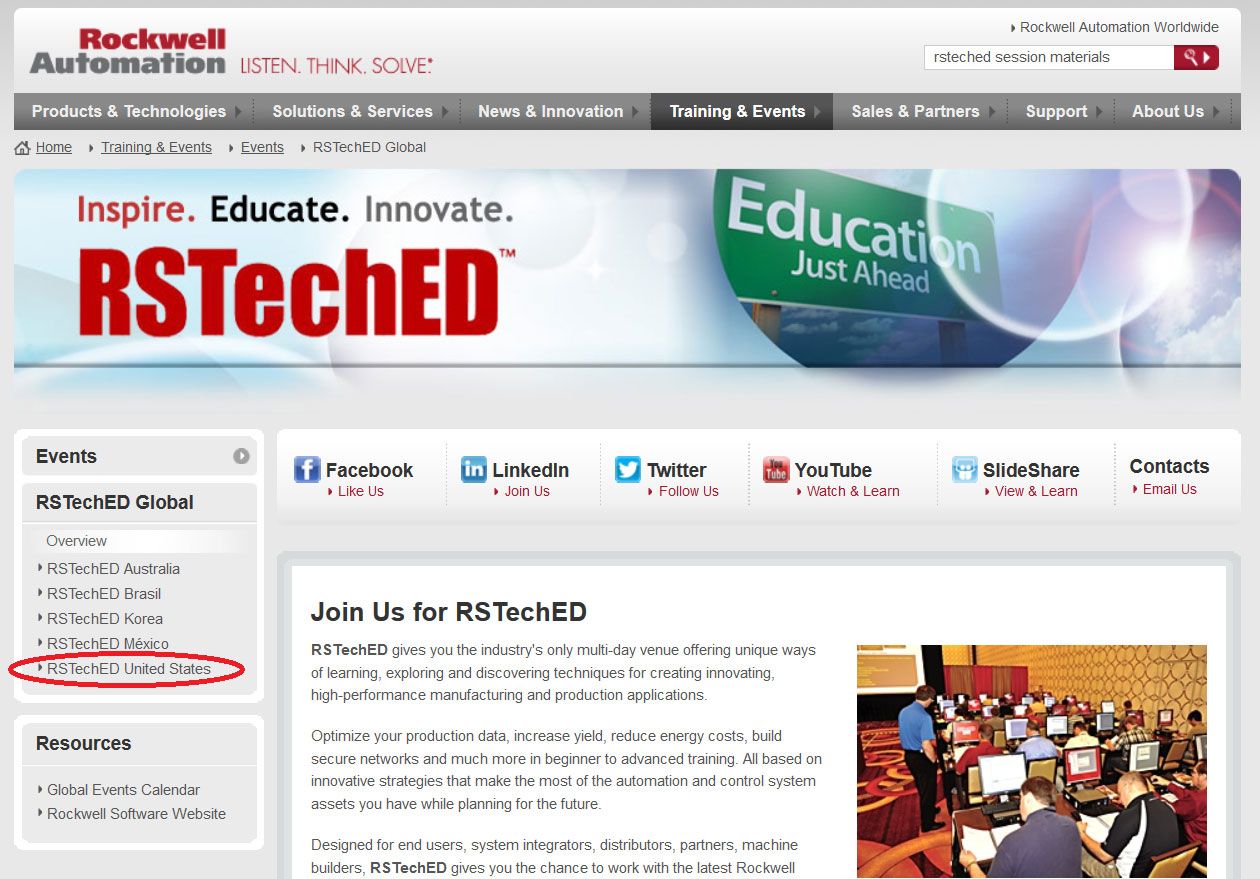
To get access to these event session materials you’ll first want to navigate to http://www.RSTechED.com

RSTechED HomepageNext, select United States and then scroll to the bottom of the page and select the “Select Session Presentations Now Available…”

RSTechED United States HomepageFinally, log in to the Rockwell Extranet using the same login as you used to sign-up for the event: (Note: I have not found a public link to these materials, but your local authorized distributor should be able to get them for you as I have for several of my clients.)

Rockwell Software Extranet Login

Once logged in you’ll find a scrolling window of events with links to the session material.

I hope you found the above information about downloading Allen-Bradley and Rockwell Software session material from RSTechED helpful. If you did, or if you have a question about RSTechED, please feel free to let us know by using the “post a comment or question” link below.

Until next time, Peace ✌️ 

If you enjoyed this content, please give it a Like, and consider Sharing a link to it as that is the best way for us to grow our audience, which in turn allows us to produce more content 🙂

Shawn M Tierney
Technology Enthusiast & Content Creator

Support our work and gain access to hundreds members only articles and videos by becoming a member at The Automation Blog or on YouTube. You’ll also find all of my affordable PLC, HMI, and SCADA courses at TheAutomationSchool.com.

Shawn Tierney

(no views)

Where to find RAOTM Session Downloads

Rockwell Automation On The Move Homepage


Today we continue this week’s theme of how and where to download session materials from Rockwell’s commercial events by discussing Rockwell’s RAOTM event.

Rockwell Automation On The Move

Rockwell’s “Rockwell Automation On The Move” (aka RAOTM) is a two day event which can be described as a smaller local version of Automation Fair.

To get these session materials, start by navigating to the RAOTM home page below:

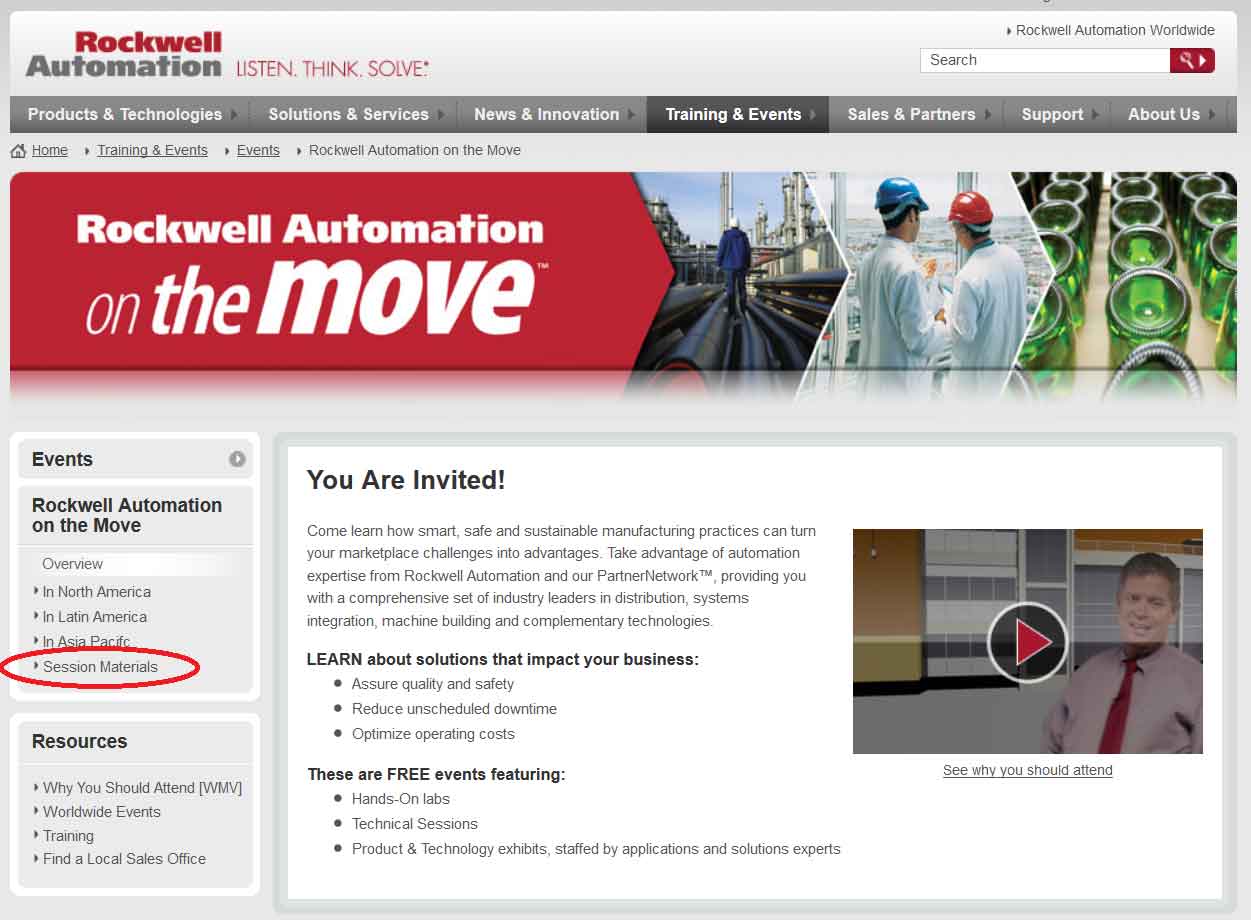
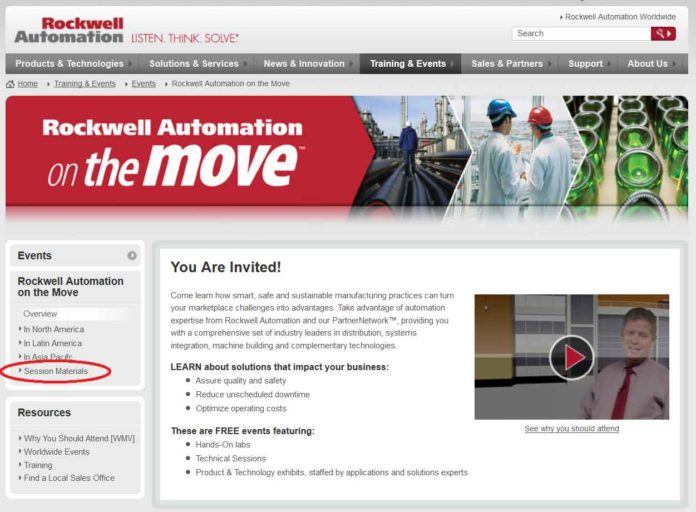
Next, select “Session Materials” (circled in red in the below image:)

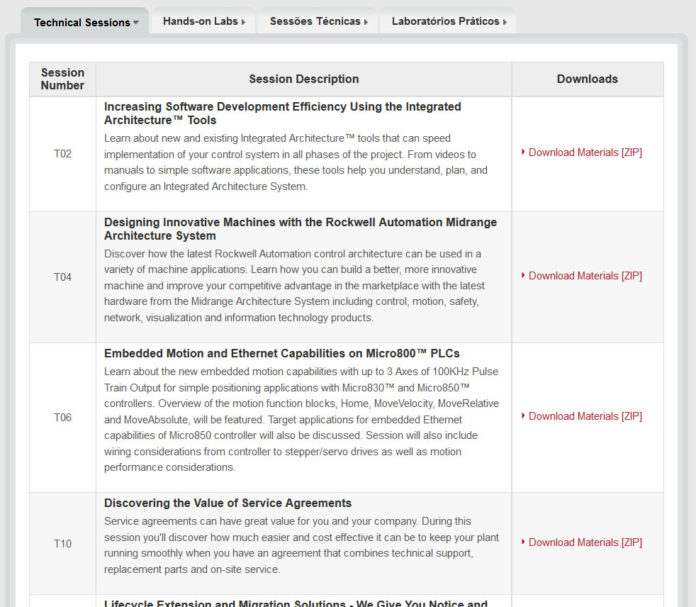
Rockwell Automation On The Move HomepageNow you should see the below tabbed listing of sessions and associated downloads:

Rockwell Automation On The Move Downloads

I hope you found the above information about downloading Allen-Bradley and Rockwell Software session material from RAOTM helpful.

If you did, or if you have a question about RAOTM, please feel free to let us know by using the “post a comment or question” form at the very bottom of this page.

Until next time, Peace ✌️ 

If you enjoyed this content, please give it a Like, and consider Sharing a link to it as that is the best way for us to grow our audience, which in turn allows us to produce more content 🙂

Shawn M Tierney
Technology Enthusiast & Content Creator

Support our work and gain access to hundreds members only articles and videos by becoming a member at The Automation Blog or on YouTube. You’ll also find all of my affordable PLC, HMI, and SCADA courses at TheAutomationSchool.com.

Shawn Tierney

(no views)

Where to find Rockwell’s Process Solutions User Group (PSUG) session downloads

Process Solutions User Group Homepage


As we discussed yesterday, Rockwell Automation (RA) holds several commercial events and trade shows each year, and most of them include hands-on labs, technical sessions, and demonstrations. And this week I’m posting how to find the session downloads for these. Today it’s…

Rockwell Automation’s “Process Solutions User Group”

Rockwell’s “Process Solutions User Group” (aka PSUG) is held each year on the two days preceding Automation Fair. It is predominately made up of customer application stories (presented by the actual customers) as well as sessions to discuss the future direction of Rockwell Automation products.

To find the PSUG session materials Rockwell makes available to download, start by navigating to the Rockwell Automation PSUG homepage:

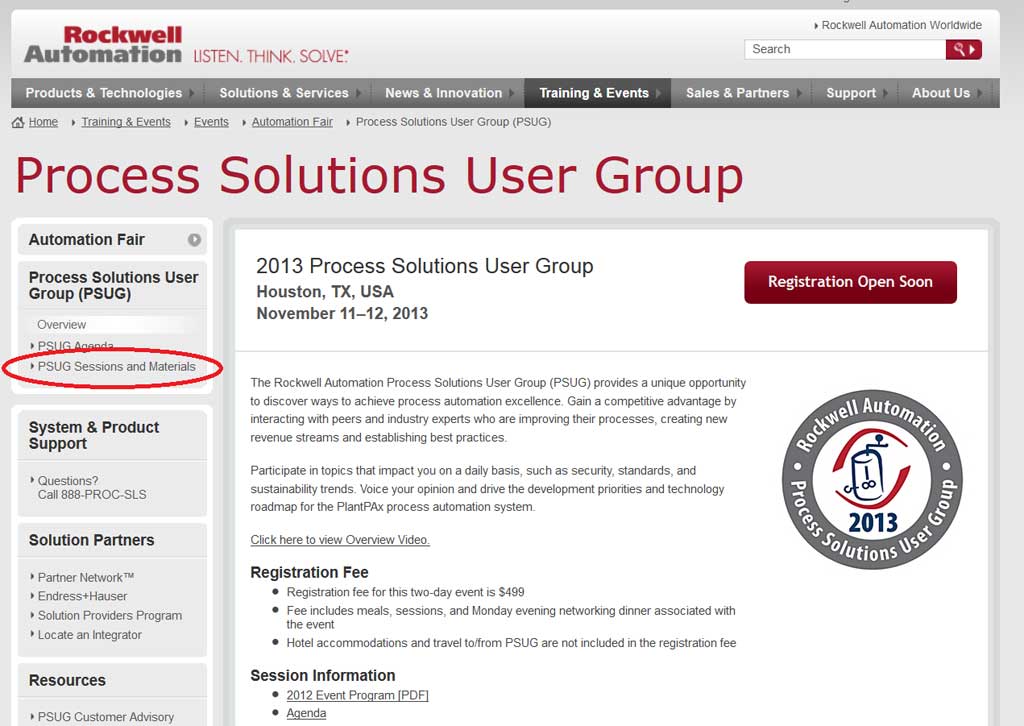
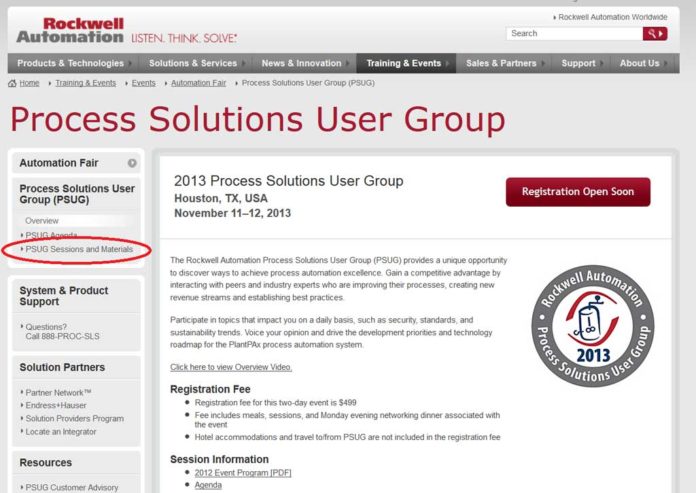
Next, select PSUG session materials (circled in red below:)

Process Solutions User Group HomepageNow you should see a tabbed listing of categories, under which is a list of sessions and download links. The most popular files will be under the “Educational Sessions” tab, as shown below:

Process Solutions User Group Downloads

I hope you found the above information about downloading Allen-Bradley and Rockwell Software session materials from Rockwell Automation’s Process Solutions User Group event helpful. If you did, or if you have a question about PSUG, please feel free to drop us a comment by using the “post a comment or question” link below.

Until next time, Peace ✌️ 

If you enjoyed this content, please give it a Like, and consider Sharing a link to it as that is the best way for us to grow our audience, which in turn allows us to produce more content 🙂

Shawn M Tierney
Technology Enthusiast & Content Creator

Support our work and gain access to hundreds members only articles and videos by becoming a member at The Automation Blog or on YouTube. You’ll also find all of my affordable PLC, HMI, and SCADA courses at TheAutomationSchool.com.

Shawn Tierney

(no views)

Where to find Automation Fair session downloads (2012, 2013)

Automation Fair Home Page

Rockwell Automation (RA) holds several commercial events and trade shows each year, and most of them include hands-on labs, technical sessions, and product demonstrations.

Following each event, I usually get a few calls or emails from clients asking where they can go online to download the presentations and lab files for the sessions they attended. To preemptively answer those questions, over the next few days I’ll post the steps you need to take to download the session materials from Rockwell’s major events, starting today with…

Rockwell Automation’s Automation Fair

What some would call Rockwell’s premier event, Automation Fair is a two day trade show and training event which is held in a different major US city each year.

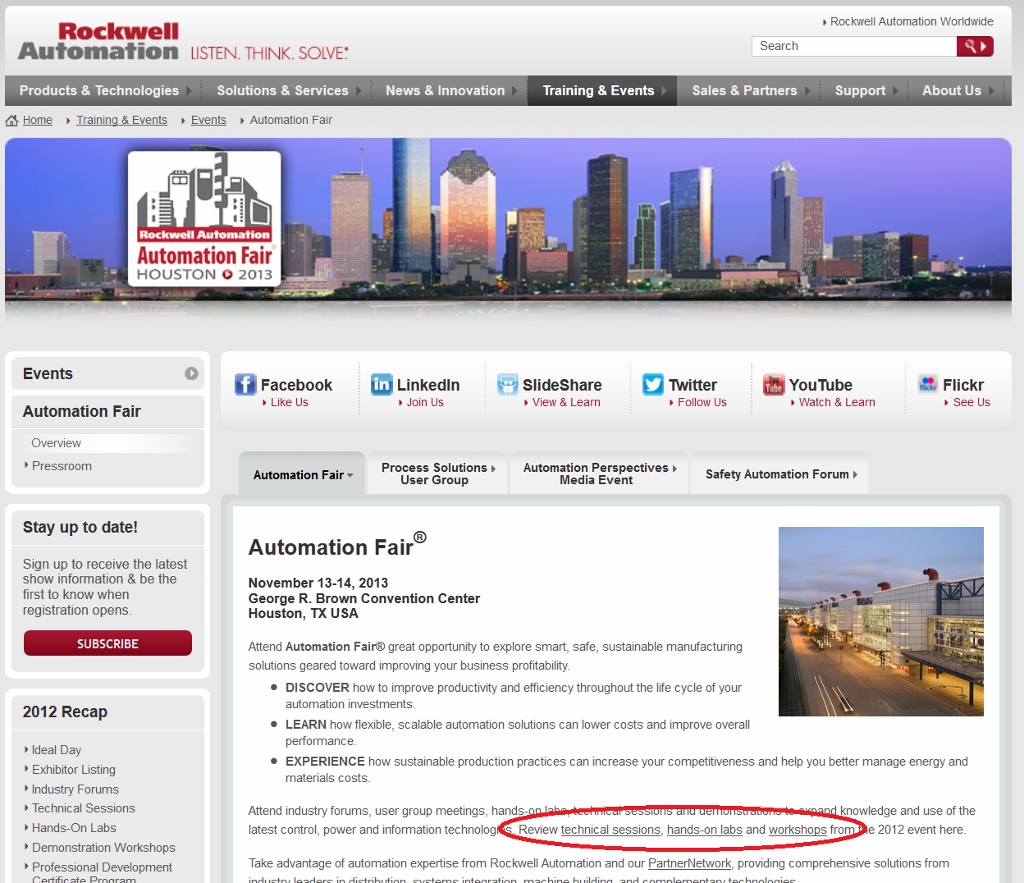
To get the session materials from this event, start by navigating to http://www.AutomationFair.com

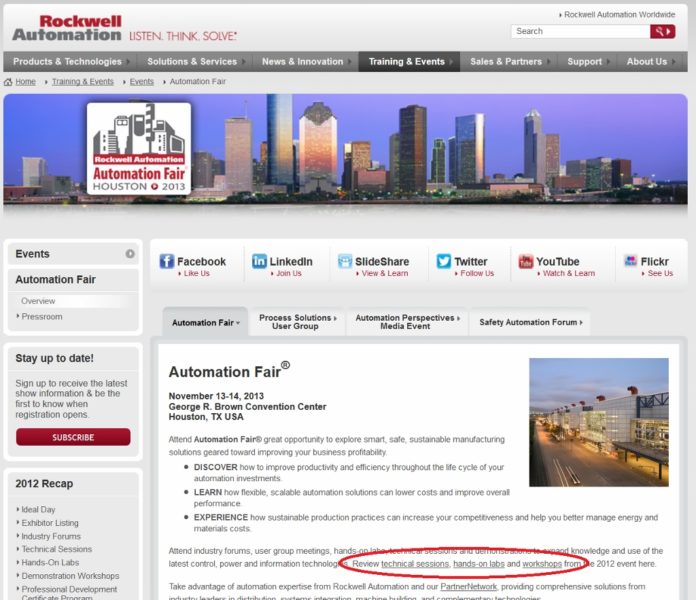
Automation Fair Home PageNext, select one of the three categories on the main page: Hands-on labs, Technical sessions, Demonstrations (circled above in red.)

EDIT: Updated for 2013, select one of the categories from the left hand side of the page, or using one of these links below:

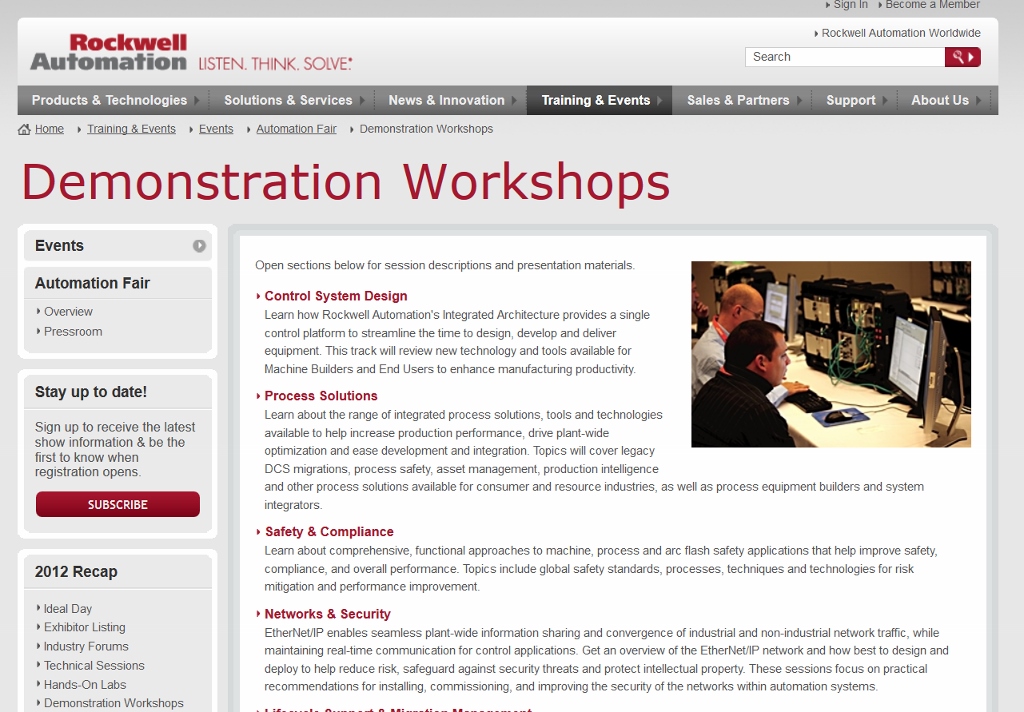
Now select the category and session you’re interested in, and you’ll see links to the content Rockwell made available to download for that session:

Automation Fair Session Material Downloads

I hope you found the above information about downloading Allen-Bradley and Rockwell Software session materials from Rockwell Automation’s Automation Fair event helpful.

If you did, or if you have a question about Automation Fair, please feel free to drop us a comment by using the “post a comment or question” link below.

Until next time, Peace ✌️ 

If you enjoyed this content, please give it a Like, and consider Sharing a link to it as that is the best way for us to grow our audience, which in turn allows us to produce more content 🙂

Shawn M Tierney
Technology Enthusiast & Content Creator

Support our work and gain access to hundreds members only articles and videos by becoming a member at The Automation Blog or on YouTube. You’ll also find all of my affordable PLC, HMI, and SCADA courses at TheAutomationSchool.com.

Shawn Tierney

(no views)

PanelView Plus 6 400, 600 – DH-485 Workaround

PanelView Plus 6 600 Front

2711P-RN3 InstalledMost of the original PanelView Plus 400 and 600 models accepted an optional communications module, and the following were available:

  • 2711P-RN3 DH-485 communication module
  • 2711P-RN8 DH+ communication module
  • 2711P-RN15C ControlNet communication module
  • 2711P-RN22C RS-232 isolated communication module

However, with the release of the new PanelView Plus 6 400 and 600, we lose the option of adding ANY communication modules (even the mounting holes and nuts for the comm modules have been removed.)

This is not the case with the larger PVPlus 6 products – on those systems we can still use the add on 2711P-RN6 to get DH-485. But what if you need to replace a 550 or 600 legacy DH-485 PanelView?

PanelView Plus 6 600 FrontIts still possible, but not nearly as clean and neat a solution. The PanelView Plus 6 400 and 600 still support the DH-485 protocol on it’s built-in RS-232 DB9 serial port, so what also is needed is an RS-232 to RS485 converter.

One option is to use the din-rail mount 1761-NET-AIC. This 24vdc powered device is a pure RS-232 to RS485 converter, one I’ve used not only for DH-485 applications, but also for ASCII, Modbus, and PC applications as well.

UPDATE: I’ve added a three part video series HERE showing how to setup a PanelView Plus on DH-485 using it’s serial port.

Besides the 24vdc power, you’ll also need to know which cables to purchase. The 1761-NET-AIC has three ports: the 6 position terminal block is the RS-485 port, and the 8 pin mini din along with the DB9 are RS-232.

If you are connecting to a daisy chain DH-485 network then no cable is needed on that side – just wire the daisy chain into the TB and you’re good to go. However, if you need to connect to an RJ-45 DH-485 connector, like that found on the front of many SLC-500’s, well you’ll want a 6-pin Phoenix to RJ45 cable, either the 1761-CBL-AS03 (3 m / 10 ft) or the 1761-CBL-AS09 (9 m / 30 ft.)

1761-NET-AIC Front ViewTo connect to the PVPlus 6 you’ll want to use one of the two serial ports. It doesn’t really matter which port you use, just chose the your less likely to program through.

Just keep in mind the PVPlus is a DCE device, meaning the cables you program your PLC via it’s DTE serial port will not work (without a null modem adapter.)

So to connect from the PVPlus 9-pin D-shell to the 1761-NET-AIC 8-pin mini DIN port you can use either the 2711-NC21 cable (5 m / 16.4 ft) or the 2711-NC22 cable (10 m / 32.7 ft.)

To connect from the PVPlus 9-pin D-shell to the 1761-NET-AIC 9-pin D-shell you would use either the 2711-NC13 cable (5 m / 16.4 ft) or the 2711-NC14 cable (10 m / 32.7 ft,) or any standard female 9-pin D-shell to female 9-pin D-shell “straight through” (DTE to DCE) RS-232 cable.

With the hardware sorted out you just need to know which driver to use in RSLinx Enterprise.

For this application you would chose the Serial DH-485 driver (same driver you would use for the 2711P-RN3) accepting the default port, but choosing the correct node address for the PVPlus, along with the corrent baud rate for the network you’re connecting to.

Hopefully you’ll find these details on how to use the new PanelView Plus 6 400 and 600 on DH-485 helpful.

If you’ve implement the above, or plan to, we’d like to hear about your experience – just click on the “post a comment or question” link below.

Until next time, Peace ✌️ 

If you enjoyed this content, please give it a Like, and consider Sharing a link to it as that is the best way for us to grow our audience, which in turn allows us to produce more content 🙂

Shawn M Tierney
Technology Enthusiast & Content Creator

Support our work and gain access to hundreds members only articles and videos by becoming a member at The Automation Blog or on YouTube. You’ll also find all of my affordable PLC, HMI, and SCADA courses at TheAutomationSchool.com.

Shawn Tierney

(no views)

PanelView Plus – Automatically Run USB Flash Drive Script

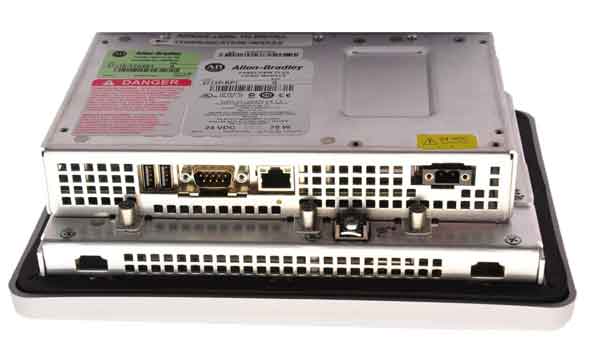
PanelView-Plus-700-Back

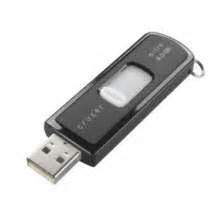
Sandisk Memory StickOn Monday and Tuesday we discussed how to access the “Configuration Mode” of the PanelView Plus and PanelView Plus 6. One additional way we did not yet cover is using an “autorun.bat” file on a USB Memory Stick (aka USB Thumb Drive, USB Flash Drive.)

These script are written to automatically move all your FactoryTalk View Machine Edition (ViewME) Runtime Files (.mer) off your terminal so when it’s rebooted it doesn’t find the needed .mer file and therefore returns to the “Configuration Mode.”

The “autorun.bat” file used for this purpose is a simple text based file reminiscent of the old DOS files of the same name.

When you place one of these files in the root folder of your USB Memory Stick, and insert it into your PVPlus, it immediately runs.

And while the commands in the “autorun.bat” file aren’t limited to coping your “.mer” files to and from your USB memory stick, this is what the below samples scripts are designed to do.
PanelView-Plus-700-BackThe first two scripts are custom ones I created for a client with a PanelView Plus 6 firmware rev 6.0 terminal.

The first backs up all the .mer files on the terminal to the USB Memory Stick , and then deletes them from the terminal.

The second script copies all the .mer files from the USB Memory Stick back to the Terminal.

Update 08/11/15: The below scripts are now available as a bundled download here:

Update 08/11/15: I recently received a PVP7s donation (thanks RK!) and can confirm these files also work on it.

Update 08/11/15: I’ve added two new scripts whch have been edited to work on a PanelPlus v5.1, but I also tested them on a PanelView Plus v3.2 and they worked there as well.

PanelView Plus 6 / 7 autorun.bat file script text used to backup .mer files from the terminal to the usb memory stick, and then delete the .mer files from the terminal.

NOTE: This file was tested on a PanelView Plus 6 and PanelView Plus 7 Standard

UPDATE: The below text was updated on 08/11/2015 to correct a typo in the REMarks

echo on

REM    BACKUP AND DELETE ALL .MER FOR PVPLUS 6

REM **************************************************************
REM    CREDITS: This file was created by Shawn Tierney and may be purchased
REM    as part of a bundle for just $0.99 at theautomationblog.com. Thank you in
REM    advance for your support!
REM **************************************************************

REM **************************************************************
REM   REQUIREMENTS:
REM   1) THIS FILE MUST BE NAMED autorun.bat TO WORK
REM   2) THIS FILE IS FOR PANELVIEW PLUS 6
REM   3) THIS SCRIPT MAY TAKE UP TO 120 SECONDS TO COMPLETE
REM **************************************************************

REM **************************************************************
REM    STEP 1 – Make backup MER folder on the PVPlus 6 in case copy fails

CD\application data\rockwell software\rsviewme

MD backup

REM **************************************************************

REM **************************************************************
REM    STEP 2 – Copy MER files to the backup directory created above

CD runtime

COPY *.* “\application data\rockwell software\rsviewme\backup”

REM **************************************************************

REM **************************************************************
REM    STEP 3 – Copy the MER files to the USB STORAGE DEVICE

COPY *.* “\usb storage”

REM **************************************************************

REM **************************************************************
REM    STEP 4- Make correct directory on USB Drive (may already exist)

CD\usb storage

MD “Rockwell Software”

CD Rockwell Software

MD RSViewME

CD RSViewME

MD Runtime

CD Runtime

REM **************************************************************

REM **************************************************************
REM    STEP 5 – COPY MER files to correct directory on the USB Drive

CD\Application Data\Rockwell Software\RSViewME\Runtime

COPY *.* “\USB Storage\rockwell software\rsviewme\runtime”

REM **************************************************************

REM **************************************************************
REM    STEP 6 – Delete MER files from the PVPlus 6 application directory to
REM    force the system to return to Configuration Menu on reboot

DEL *.mer

REM **************************************************************

REM **************************************************************
REM    REMINDER – Tell the operators to allow 120 seconds from when they
REM    insert the card before they remove it
REM    The process is now complete
REM    Remove the USB Drive and cycle power to the terminal
REM **************************************************************

REM **************************************************************
REM    This file was written & tested by Shawn Tierney, InsightsInAutomation.com
REM    and may be purchased as part of a four file bundle for just $0.99
REM    at http://www.theautomationblog.com. Thank you in advance for your support!
REM **************************************************************

PanelView Plus 6 / 7 autorun.bat file script text used to copy .mer files from the usb memory stick to the terminal:

NOTE: This file was tested on a PanelView Plus 6 and PanelView Plus 7 Standard

UPDATE: The below text was updated on 08/11/2015 to correct a typo in the REMarks

echo on

REM    COPY ALL .MER FILES FROM USB TO  PVPLUS 6

REM **************************************************************
REM    CREDITS: This file was created by Shawn Tierney and may be purchased
REM    as part of a bundle for just $0.99 at theautomationblog.com. Thank you in
REM    advance for your support!

REM **************************************************************

REM **************************************************************
REM   REQUIREMENTS:
REM   1) THIS FILE MUST BE NAMED autorun.bat TO WORK
REM   2) THIS FILE IS FOR PANELVIEW PLUS 6
REM   3) THIS SCRIPT MAY TAKE UP TO 120 SECONDS TO COMPLETE

REM **************************************************************

REM **************************************************************
REM    STEP 1 – Copy all .MER files from the correct directory on the USB Drive
REM    to the correct directory on the PanelView Plus 6

CD\Application Data\Rockwell Software\RSViewME\Runtime

COPY “USB Storage\Rockwell Software\RSViewME\Runtime\*.*”

REM **************************************************************

REM **************************************************************
REM    REMINDER – Tell the operators to allow 120 seconds from when they
REM    insert the card before they remove it
REM    The process is now complete
REM    Remove the USB Drive and cycle power to the terminal

REM **************************************************************

REM **************************************************************
REM    This file was written & tested by Shawn Tierney, InsightsInAutomation.com
REM    and may be purchased as part of a four file bundle for just $0.99
REM    at http://www.theautomationblog.com. Thank you in advance for your support!
REM **************************************************************

NEW! PanelView Plus 5.1 autorun.bat file script text used to backup .mer files from the terminal to the usb memory stick, and then delete the .mer files from the terminal.

NOTE: This file was tested on a v5.1 and v3.2 PanelView Plus

echo on

REM    BACKUP AND DELETE ALL .MER FOR PVPLUS 5.1

REM **************************************************************
REM    CREDITS: This file was created by Shawn Tierney and may be purchased
REM    as part of a bundle for just $0.99 at theautomationblog.com. Thank you in
REM    advance for your support!
REM **************************************************************

REM **************************************************************
REM   REQUIREMENTS:
REM   1) THIS FILE MUST BE NAMED autorun.bat TO WORK
REM   2) THIS FILE IS FOR PANELVIEW PLUS FIRMWARE 3.0 TO 5.1
REM   3) THIS SCRIPT MAY TAKE UP TO 120 SECONDS TO COMPLETE
REM **************************************************************

REM **************************************************************
REM    STEP 1 – Make backup MER folder on the PVPlus in case copy fails

CD\storage card\rockwell software\rsviewme

MD backup

REM **************************************************************

REM **************************************************************
REM    STEP 2 – Copy MER files to the backup directory created above

CD runtime

COPY *.* “\storage card\rockwell software\rsviewme\backup”

REM **************************************************************

REM **************************************************************
REM    STEP 3 – Copy the MER files to the USB STORAGE DEVICE

COPY *.* “\usb storage”

REM **************************************************************

REM **************************************************************
REM    STEP 4- Make correct directory on USB Drive (may already exist)

CD\usb storage

MD “Rockwell Software”

CD Rockwell Software

MD RSViewME

CD RSViewME

MD Runtime

CD Runtime

REM **************************************************************

REM **************************************************************
REM    STEP 5 – COPY MER files to correct directory on the USB Drive

CD\storage card\rockwell software\rsviewme\runtime

COPY *.* “\usb storage\rockwell software\rsviewme\runtime”

REM **************************************************************

REM **************************************************************
REM    STEP 6 – Delete MER files from the PVPlus application directory to
REM    force the system to return to Configuration Menu on reboot

DEL *.mer

REM **************************************************************

REM **************************************************************
REM    REMINDER – Tell the operators to allow 120 seconds from when they
REM    insert the card before they remove it
REM    The process is now complete
REM    Remove the USB Drive and cycle power to the terminal
REM **************************************************************

REM **************************************************************
REM    This file was written & tested by Shawn Tierney, InsightsInAutomation.com
REM    and may be purchased as part of a four file bundle for just $0.99
REM    at http://www.theautomationblog.com. Thank you in advance for your support!
REM **************************************************************

New! PanelView Plus 5.1 autorun.bat file script text used to copy .mer files from the usb memory stick to the terminal:

NOTE: This file was tested on a v5.1 and v3.2 PanelView Plus

echo on

REM    COPY ALL .MER FILES FROM USB TO PVPLUS 5.1

REM **************************************************************
REM    CREDITS: This file was created by Shawn Tierney and may be purchased
REM    as part of a bundle for just $0.99 at theautomationblog.com. Thank you in
REM    advance for your support!
REM **************************************************************

REM **************************************************************
REM   REQUIREMENTS:
REM   1) THIS FILE MUST BE NAMED autorun.bat TO WORK
REM   2) THIS FILE IS FOR PANELVIEW PLUS FIRMWARE 3.0 TO 5.1
REM   3) THIS SCRIPT MAY TAKE UP TO 120 SECONDS TO COMPLETE
REM **************************************************************

REM **************************************************************
REM    STEP 1 – Copy all .MER files from the correct directory on the USB Drive
REM    to the correct directory on the PanelView Plus

CD\storage card\rockwell software\rsviewme\runtime

COPY “\usb storage\rockwell software\rsviewme\runtime\*.*”

REM **************************************************************

REM **************************************************************
REM    REMINDER – Tell the operators to allow 120 seconds from when they
REM    insert the card before they remove it
REM    The process is now complete
REM    Remove the USB Drive and cycle power to the terminal
REM **************************************************************

REM **************************************************************
REM    This file was written & tested by Shawn Tierney, InsightsInAutomation.com
REM    and may be purchased as part of a four file bundle for just $0.99
REM    at http://www.theautomationblog.com. Thank you in advance for your support!
REM **************************************************************

IMPORTANT: Please note, copying the above text from inside internet explorer may replace the standard “quotes” with angled “quotes,” which will in turn cause the copy and make directory functions to fail when executed on the PanelView Plus.


Update: The above scripts are now available as a bundled download here:

Hopefully the above autorun scripts will come in handy if you ever lock yourself out of your PVPlus, or if you just want an easy way to backup all your .mer runtime files on your terminal.

If you have any stories about being locked out of your PVPlus, or have a similar script to share, please click on the “post a comment or question” link below to share your comments with the rest of us.

Until next time, Peace ✌️ 

If you enjoyed this content, please give it a Like, and consider Sharing a link to it as that is the best way for us to grow our audience, which in turn allows us to produce more content 🙂

Shawn M Tierney
Technology Enthusiast & Content Creator

Support our work and gain access to hundreds members only articles and videos by becoming a member at The Automation Blog or on YouTube. You’ll also find all of my affordable PLC, HMI, and SCADA courses at TheAutomationSchool.com.

Shawn Tierney

(no views)

PanelView Plus – Configuration Mode Menu: Why Is The White Box Missing / F1 Won’t Work?

Rockwell Software Downloads 3.0 to 3.1 FUP Files Large

Update: Check out the newest article on this topic HERE.

Why is the PanelView Plus “Goto Config Mode” white box missing on boot? Why doesn’t pressing F1 on boot bring me to the PanelView Plus configuration mode?

PanelView Plus Configuration ModeYesterday we discussed how to get into the “Configuration Mode” of a PanelView Plus, and we learned the easiest way to do so was to either put a “Goto Config” button in your FactoryTalk View Machine Edition (ViewME) project, or intterupt the boot process of the terminal by pressing the “White Box” in the lower left corner of a touch screen unit, or the “F1 Key” on a keypad unit.

But what do you do when the “White Box” doesn’t show up, or the “F1 key” doesn’t work?

There’s two reasons why this may be happening:

PanelView Plus 3.20.09 Patch Release NotesFirst, it could be your PanelView Plus has a firmware version prior to 3.20.09. If that’s the case, the firmware loaded in your terminal predates the inclusion of the “White Box” and “F1” power-up auto load interrupt. In these cases I highly recommend backing up all the .mer files on your PanelView Plus, and well as recording all your network and communication settings, and then flashing your unit up to the latest firmware available for your PVPlus, which would be version 5.1+.

This will not only add the “White Box” and “F1 Key” boot-up option to enter “Configuration Mode,” it will also provide all the advantages the latest 5.1 firmware provides (including ViewPoint web clients, if your unit has enough memory to run it.) Just beware the version 5.1 firmware supports ViewME Runtime files (.mer) back to 3.1. There’s some question as to if a version 3.0 file would also work on a 5.1 terminal, but no question as whether it’s supported (it’s not.) So if your project is version 3.0, I suggest you be sure you have the full project (the .apa file, not the .mer) and the capacity to rev. the application to version 3.1 before you commit to flashing your PVPlus.

Rockwell Software Downloads 3.0 to 3.1 FUP FilesYou may also have to visit the Rockwell Software Downloads Page to find a copy of the 3.0 to 3.1 firmware migration files as last time I checked 3.0 first has to be migrated to 3.1 before it can be migrated to any other version

The second reason you may not see the “White Box,” or the “F1 Key” does not work to interrupt the boot process could be because you have a PanelView Plus 6 with firmware 6.0. It’s quite an annoyance that version 6.0 of the PVPlus 6 did not have this feature which so many people rely on, and to bring the feature back you’ll need to first flash your PanelView Plus 6 to version 6.1. And just like when flashing a PanelView Plus, before you do so you should back up all your .mer files which are on the terminal, and well as record all the terminal’s network and communication settings.

PanelView Plus 6 Manual Boot OptionOnce your PVPlus 6 terminal is flashed to 6.1 you still need to enable the “White Box” / “F1 Key” functionality. To do this you must exit “Configuration Mode” to get to the “Windows CE” desktop. And to do that you’ll need to know the password, which by default is “password.”
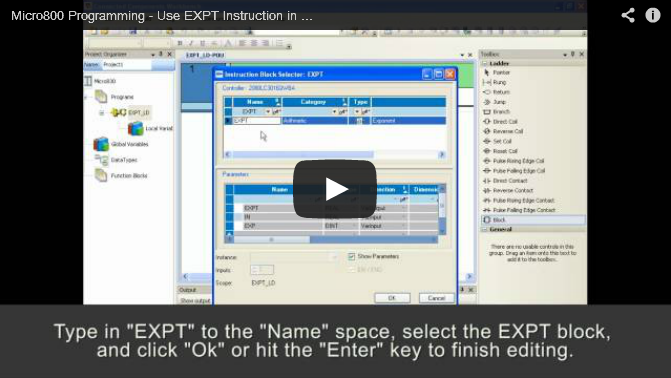
Once in Windows CE, open the Control Panel, chose “System,” then “Start-up Options,” then “Boot Option,” and select “Detect safe mode request at startup.” It’s quite a few steps, but it does bring back the “White Box” and “F1 Key” boot-up functionality, which I have to say is much better than the option provided in version 6.0 required plugging in a USB keyboard into the back of the PVPlus 6.

If you have anything you would like to add to the above, or have any questions on this information, please feel free to click on the “post a comment or question” link below to comment on this article.

Until next time, Peace ✌️ 

If you enjoyed this content, please give it a Like, and consider Sharing a link to it as that is the best way for us to grow our audience, which in turn allows us to produce more content 🙂

Shawn M Tierney
Technology Enthusiast & Content Creator

Support our work and gain access to hundreds members only articles and videos by becoming a member at The Automation Blog or on YouTube. You’ll also find all of my affordable PLC, HMI, and SCADA courses at TheAutomationSchool.com.

Shawn Tierney

(no views)